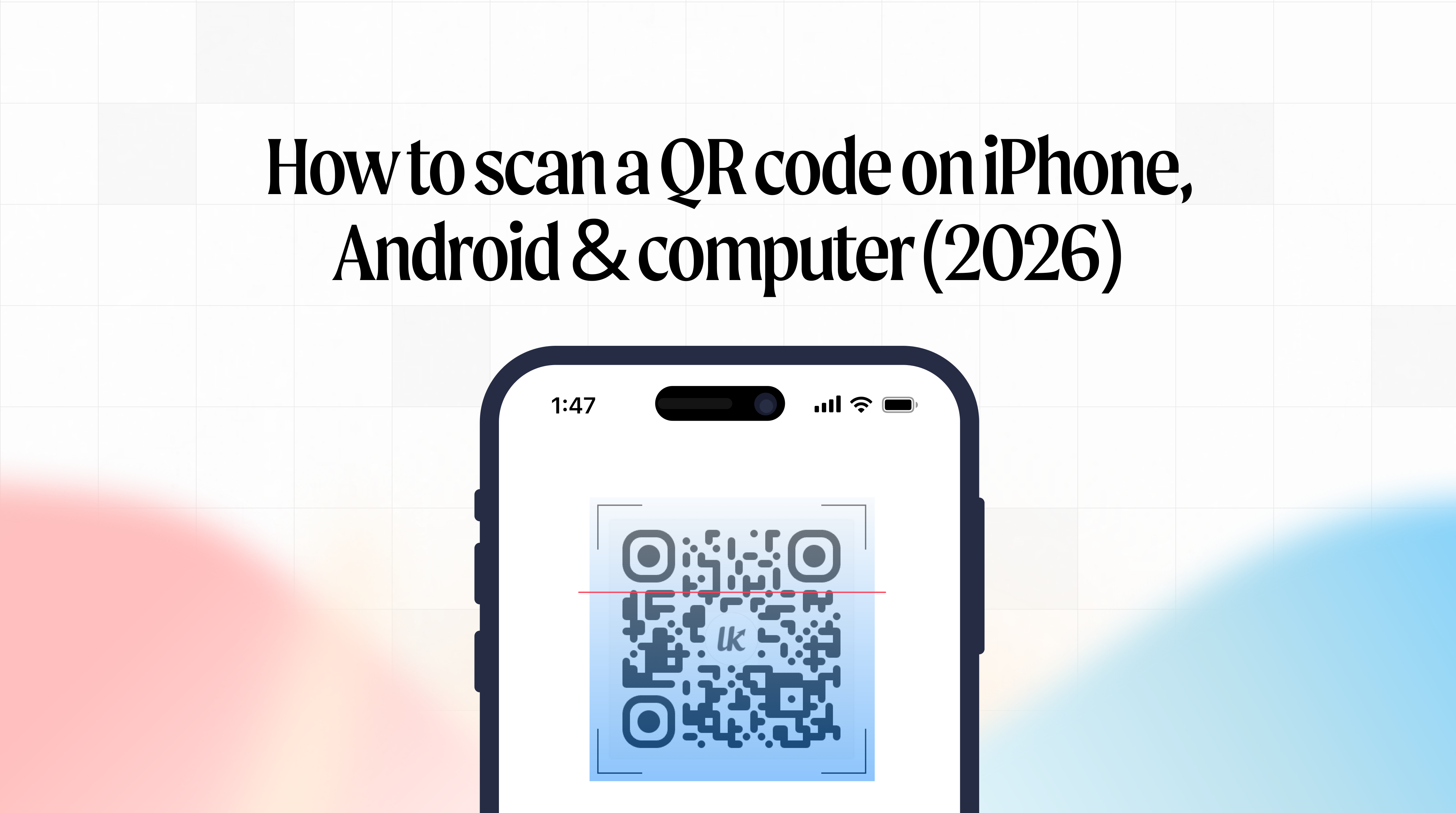
Linkkit Team
Building the future of link management and analytics.
You see a QR code on a restaurant table. Or a flyer. Or someone's business card. You know you're supposed to scan it — but if you've ever stood there for a second thinking "wait, how do I actually do this?", you're not alone.
The good news is that scanning a QR code in 2026 takes about two seconds and you almost certainly already have everything you need. No app downloads. No settings to dig through. Just your phone camera and a steady hand.
This guide walks you through every method — iPhone, Android, Samsung, from a screenshot, even from a computer — in plain language.
Do you need a special app to scan a QR code?
No. Not anymore.
If your phone was made after 2018, your built-in camera app can scan QR codes automatically. No third-party scanner app needed. No download. No setup.
Apple added built-in QR scanning to iPhones in 2017 with iOS 11. Most Android phones got native QR scanning in 2018 with Android 9. If your phone is newer than that — and it almost certainly is — your camera already knows what to do.
How to scan a QR code on iPhone
This is the fastest and easiest way. You probably already know how to do it without realising.
Method 1 — The camera app (The one you use every day)
Open your Camera app — the same one you use to take photos
Point it at the QR code. You don't need to take a photo. Just hold it steady so the code is visible in the frame.
A yellow banner appears at the top of your screen showing where the link goes
Tap the banner
Done — your browser opens and takes you to the destination
That's it. If nothing happens, go to Settings → Camera and make sure "Scan QR Codes" is switched on. It's on by default but sometimes gets turned off after a software update.
Method 2 — control centre (even faster)
If you scan QR codes regularly, this is worth setting up once.
Swipe down from the top-right corner of your screen to open Control Centre
Tap the QR code scanner icon (looks like a small QR code)
Point at the code — it scans and opens automatically
Don't see the icon? Go to Settings → Control Centre → Add a Control → Code Scanner. Add it and it's there forever.
Method 3 — scan from a screenshot or photo
Someone sent you a QR code over WhatsApp? Got one in an email? You can scan it directly from your camera roll without doing that awkward phone-to-screen thing.
Open the QR code image in your Photos app
Long-press on the QR code in the image
Your iPhone recognises it and gives you a tap option to open the link
This works on iPhone XS or later running iOS 16 or newer.
How to scan a QR code on android
Android scanning works the same way in principle — but the exact steps vary slightly depending on which phone you have. Here are the methods that work on every Android device.
Method 1 — The camera app (works on most android phones)
Open your Camera app
Point it at the QR code and hold it steady
A link chip or banner appears on screen
Tap it to open the destination
This works on Google Pixel, OnePlus, Motorola, Xiaomi, and most modern Android devices. If your camera doesn't detect QR codes automatically, open Camera settings and look for a "Scan QR codes" or "Google Lens suggestions" toggle — switch it on.
Method 2 — Google Lens (Works on every android)
If your camera app doesn't pick up the QR code for any reason, Google Lens always works.
Open the Google app on your phone
Tap the camera icon in the search bar
Point at the QR code (or tap the gallery icon to pick an image)
Tap the link that appears
Google Lens is installed on virtually every Android phone and is the most reliable fallback method.
Method 3 — Quick settings shortcut
Many Android phones have a QR scanner tile in Quick Settings — the fastest possible way to scan.
Swipe down from the top of your screen to open Quick settings
Look for a "Scan QR" or "QR Scanner" tile
Tap it, point at the code, done
If you don't see it, tap the pencil/edit icon in Quick Settings and look for the scanner tile to add it.
Method 4 — Samsung specific
Samsung phones have a couple of extra options worth knowing:
Using Bixby vision:
Open your Camera, tap the Bixby Vision icon (looks like an eye), and point at the QR code.
Using Samsung quick Settings:
Swipe down twice to expand Quick Settings and tap "Scan QR code."
From a saved image:
Open the image in your Samsung Gallery, tap the Bixby Vision icon at the bottom, and it reads the QR code from the photo.
How to scan a QR code from a screenshot or image
This one trips people up. You're on your laptop and someone sends you a QR code in an email. Or you screenshot a QR code on your phone and want to scan it without pointing one device at another screen.
Here's how to handle it on each device:
On iPhone:
Open the screenshot in Photos → long-press the QR code → tap the option to open the link. Works on iOS 16+ with iPhone XS or later.
On Android:
Open Google Lens → tap the gallery icon instead of using the camera → select your screenshot → Lens reads the code and shows you the link.
On Samsung:
Open the image in your Gallery app → tap the Bixby Vision eye icon at the bottom → it scans the QR code from the saved image.
On a computer:
Right-click any QR code image in Chrome → select "Search image with Google Lens" → Chrome reads the code and shows you the link. No phone needed.
How to scan a QR code on a computer
Your laptop doesn't have a built-in QR scanner, but there are two easy ways to read a QR code on a desktop or laptop:
Method 1 — Google Lens in Chrome:
Right-click any QR code image on a webpage → select "Search image with Google Lens" → the result shows you the link instantly. No extensions, no downloads.
Method 2 — Upload to an Online Scanner:
If you have a QR code saved as an image file, go to any free browser-based QR scanner, upload the image, and it reads the code immediately. Works in any browser on any device — useful if you're on a work laptop and need to decode a QR code someone sent in a document.
QR code won't scan? Here's how to fix It
Sometimes a QR code just refuses to cooperate. Before you give up, try these fixes in order:
1. Clean your camera lens
Sounds obvious, but a smudged lens is one of the most common reasons a QR code won't scan. Give it a quick wipe and try again.
2. Check that QR scanning is enabled
On iPhone: Settings → Camera → Scan QR Codes — make sure it's on.
On Android: Open Camera settings and look for a "Scan QR codes" or similar toggle.
3. Move closer — but not too close
The minimum reliable size for a QR code is about 1 inch (2.5cm) when held at arm's length. If the code is small and you're too far away, your camera can't focus. Move in gradually until the banner appears.
4. Improve the lighting
Low light makes it hard for cameras to pick up the contrast between the black and white squares. Increase brightness if you're scanning a screen, or find better lighting if you're scanning a printed code.
5. Hold still
Camera shake blurs the scan. Hold your phone still for 2–3 seconds and let the camera focus naturally. Don't try to tap to focus — just hold steady.
6. Try Google Lens
If your camera app still won't read it, open Google Lens and try from there. Lens often reads codes that the native camera app struggles with, especially if the code is damaged or printed at low resolution.
7. The code itself might be broken
If none of the above works, the QR code may be genuinely unreadable — printed too small, low resolution, damaged, or incorrectly generated. If this is a code you created, check your QR code generator settings.
Is it safe to scan a QR code?
Most of the time, yes. QR codes are just a way to encode information — the code itself cannot install anything on your phone or access your data.
But what a QR code links to can be harmful, just like any link you click online. There's even a name for QR-based phishing — "quishing." It's rare, but it's worth being aware of.
A few simple habits keep you safe:
Always check the URL preview before tapping
When you scan a QR code, your phone shows you the destination link before you open it. Take a second to read it. Does it look like a real domain? Does it match what you'd expect from the context?
Be cautious with QR codes in public places
Scammers sometimes place fake QR code stickers over legitimate ones — on parking meters, restaurant tables, and event signs. If a QR code sticker looks like it's been placed over another code, don't scan it.
Never enter passwords or payment details on a page you didn't expect
If a QR code takes you to a login page or payment form out of nowhere, close it. Legitimate businesses don't ask for credentials via unexpected QR codes.
Stick to QR codes from sources you trust
If a brand, restaurant, or business created the QR code and you can see who put it there, it's almost always fine.
Quick reference — scanning methods at a glance
Device | Fastest method | Backup method |
|---|---|---|
iPhone | Camera app → tap yellow banner | Control Centre → QR scanner icon |
Android (most) | Camera app → tap link chip | Google Lens in Google app |
Samsung | Camera app or Quick Settings tile | Bixby Vision or Google Lens |
From a screenshot (iPhone) | Long-press QR code in Photos | Share to Google Lens |
From a screenshot (Android) | Google Lens → gallery | Share to Google Lens |
Computer | Right-click → Google Lens in Chrome | Upload to online QR scanner |
Want to create a QR code too?
Now you know how to scan one — creating one is even easier.
With Linkkit, you can create a trackable QR code from any link in under 60 seconds. Every QR code is built on a branded short link so you can update where it points any time, and track every scan with full analytics — location, device, time, total scans.
Create your first QR code with Linkkit free today — no credit card required.
Frequently asked questions
Do I need an app to scan a QR code?
No. Any iPhone running iOS 11 or later and most Android phones made after 2018 can scan QR codes using the built-in camera app. No third-party app needed.
How do I scan a QR code on my iPhone?
Open your Camera app, point it at the QR code, and tap the yellow banner that appears at the top of your screen. Your browser will open the destination automatically.
How do I scan a QR code on Android?
Open your Camera app, point it at the QR code, and tap the link or banner that appears. If your camera doesn't detect it, open Google Lens from the Google app and use that instead.
How do I scan a QR code from a screenshot?
On iPhone, open the screenshot in Photos and long-press the QR code — your phone recognises it and lets you open the link. On Android, open Google Lens, tap the gallery icon, and select the screenshot.
How do I scan a QR code on a computer?
Right-click any QR code image in Chrome and select "Search image with Google Lens." Alternatively, save the image and upload it to a free online QR scanner in your browser.
Why won't my QR code scan?
The most common causes are a dirty camera lens, QR scanning disabled in camera settings, the code being too small or too far away, poor lighting, or camera shake. Try cleaning the lens and enabling QR scanning in Settings first.
Is it safe to scan a QR code?
The QR code itself is safe — it's just encoded data. What matters is where it links to. Always check the URL preview before tapping, be cautious with codes in public places, and never enter payment details or passwords on a page you weren't expecting.
Can I scan a QR code without internet?
Your camera can read the QR code without internet, but if it links to a website you'll need a connection to open it. QR codes that trigger a phone call, save a contact, or connect to Wi-Fi may work without a full internet connection.
Linkkit is FREE to start, TRACK your 500 clicks today.