Linkkit Team
Building the future of link management and analytics.
A QR code is a scannable square that instantly connects anyone with a smartphone to a link, a page, a file, or any digital destination — no typing required. Creating one takes less than 60 seconds. Using one well takes a little more thought.
Linkkit is a short link and QR code platform that lets you create trackable QR codes in seconds — and see exactly how many people scanned them, from where, and on what device.
What is a QR code?
QR stands for Quick Response. A QR code is a two-dimensional barcode that stores data — most commonly a URL — in a grid of black and white squares. When a smartphone camera points at it, the device instantly decodes the pattern and takes the user to the linked destination.
Unlike a printed URL that requires typing, a QR code removes all friction. One scan. Instant redirect.
QR codes were invented in 1994 to track car parts in manufacturing. In 2026, over 2.9 billion people worldwide use them — and usage has grown over 300% since 2021. They are now a standard part of everyday marketing, packaging, events, and print campaigns.
Static QR codes vs. dynamic QR codes
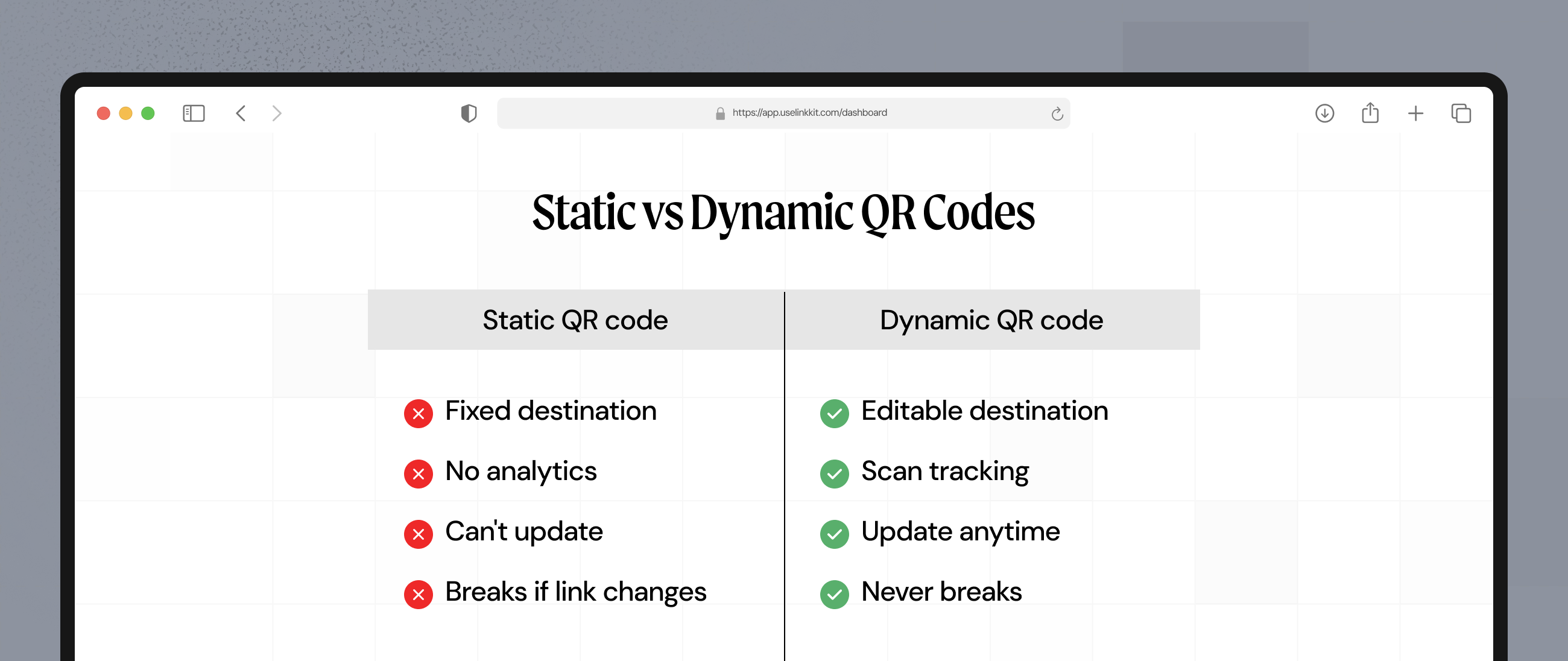
Before you create a QR code, you need to understand this distinction — it is the most important decision you will make.
Static QR codes
The destination URL is encoded directly into the QR code pattern. Once printed, it cannot be changed. If your link changes, the QR code breaks and you have to reprint everything.
Best for: Personal, one-off use where you never need to update the destination.
Dynamic QR codes
The QR code points to a short redirect link. You can update the destination at any time — without changing or reprinting the QR code. Dynamic codes also track scan analytics: how many scans, from which location, on which device, and at what time.
Best for: Any business or marketing use. Campaigns, packaging, print materials, events.
Linkkit creates dynamic QR codes by default. Every QR code is built on a short link — so you can update where it points any time, and track every scan automatically. Learn more about Linkkit's QR codes.
How to Create a QR code with Linkkit — step by step
Creating a QR code with Linkkit takes under 60 seconds. Here is the complete process:
Step 1 — Paste your long URL
Go to your Linkkit dashboard and paste the destination URL — your website, landing page, product page, event registration, or any link you want people to reach.
Step 2 — Create your short link
Linkkit automatically creates a short link from your URL. You can customise the slug — for example, yourbrand.link/menu or yourbrand.link/event2026 — so the link itself is clean and branded.
Step 3 — Your QR code is generated automatically
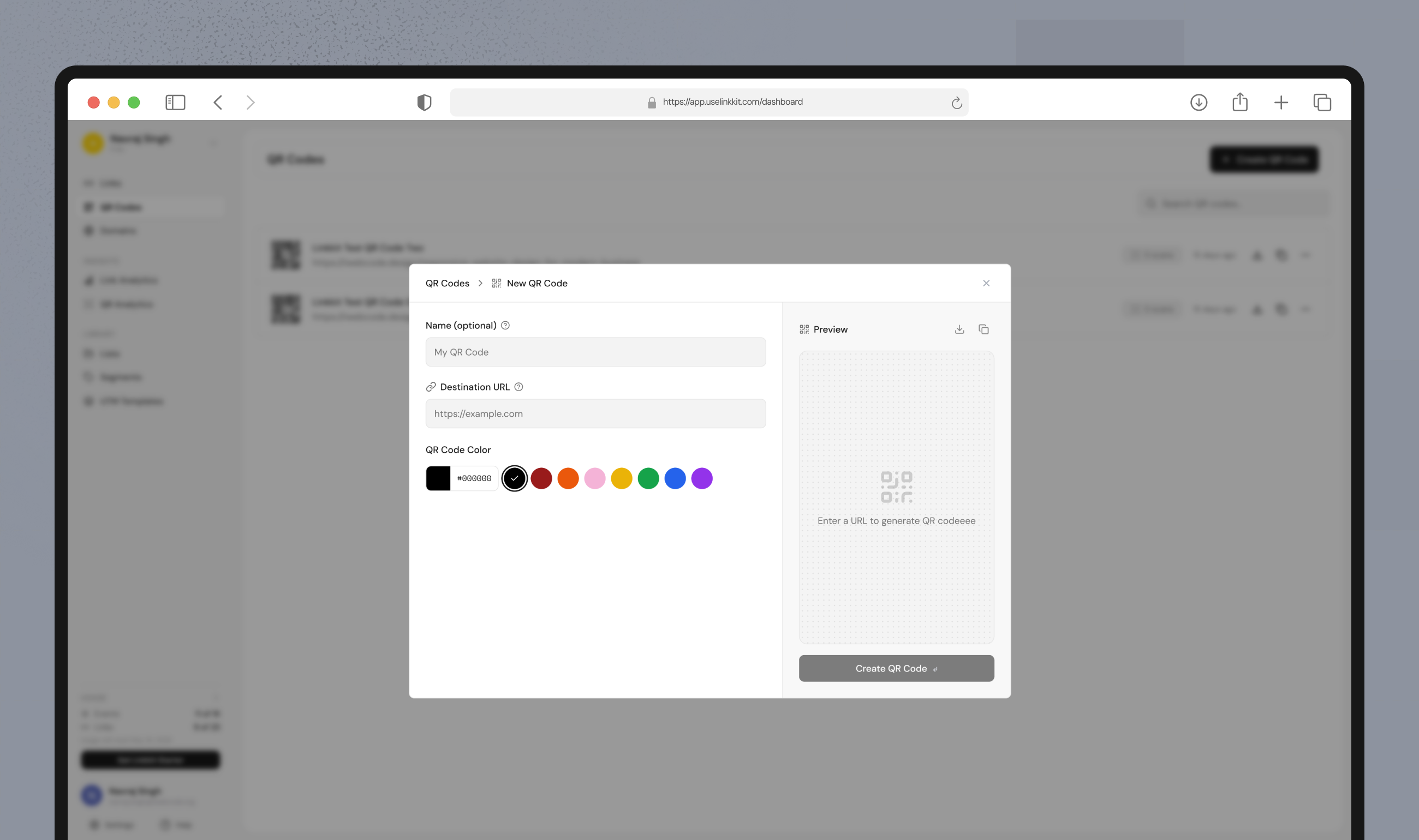
Linkkit generates a QR code for every short link instantly. No extra steps. Your QR code is ready to download the moment the link is created.
Step 4 — Download your QR code
Download your QR code in the format you need:
PNG — for digital use: websites, social media, email, presentations
SVG — for print: scales to any size without quality loss, best for flyers, packaging, and signage
Step 5 — Add a call-to-action and place it
Add a short CTA near your QR code — "Scan for Menu," "Get 10% Off," "Download Free Guide." A QR code with no context gets ignored. A QR code with a clear instruction gets scanned.
Step 6 — Track your scans
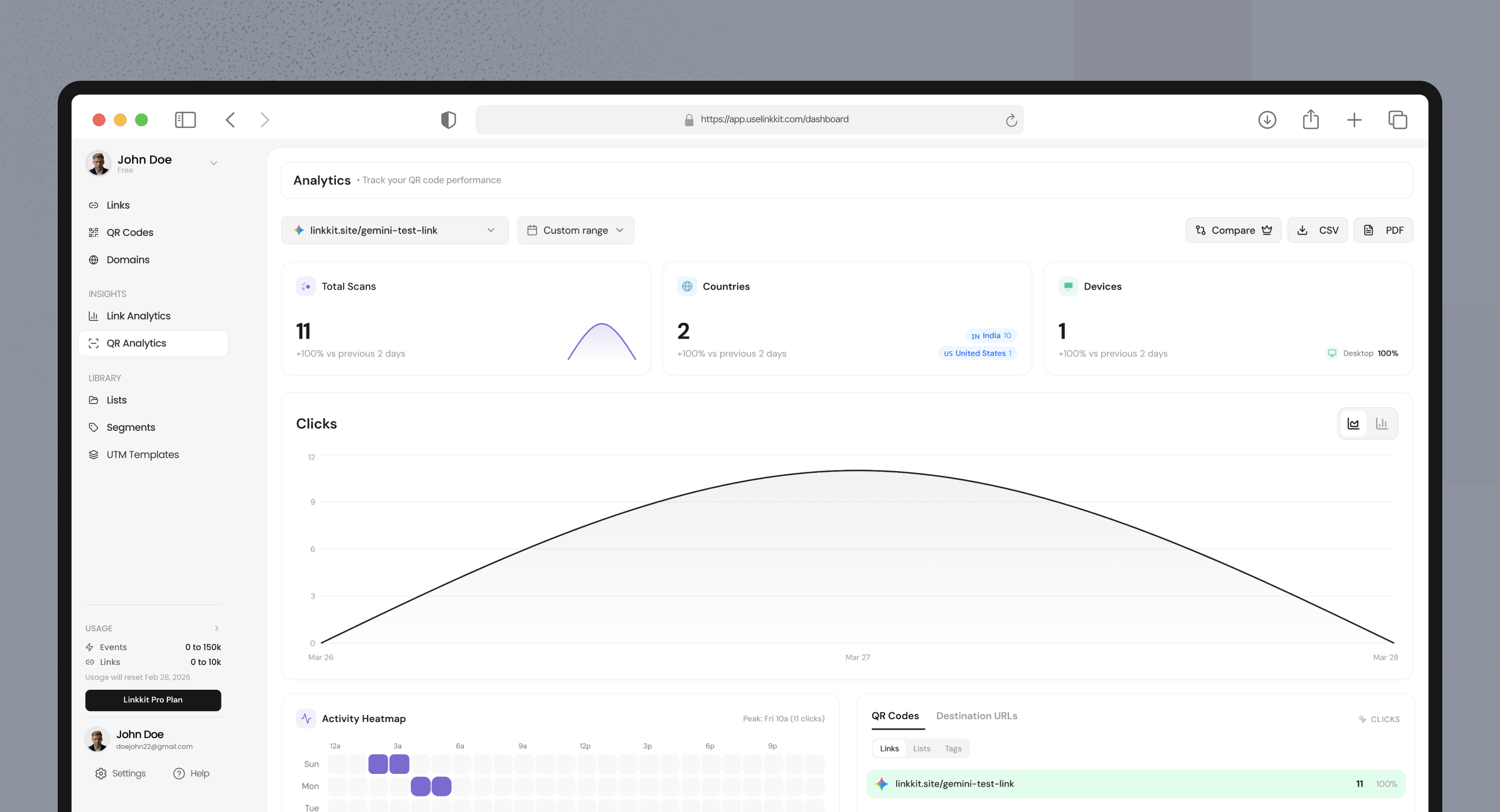
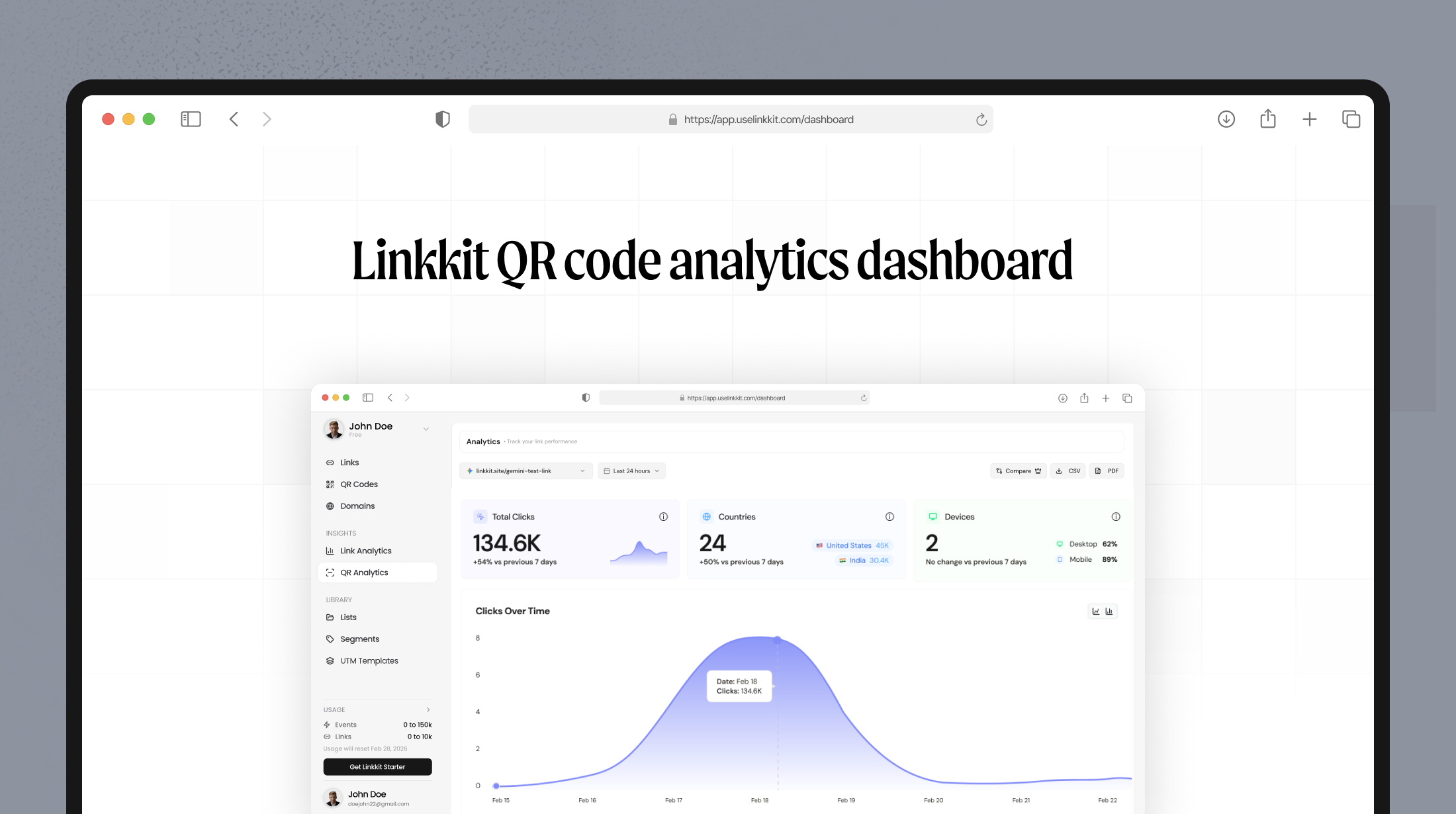
Every scan is tracked in your Linkkit analytics dashboard. See total scans, scan locations by country and city, device types, and scan patterns over time.
QR code types — What can a QR code link to?
A QR code can point to almost anything digital. The most common types:
Website URL
The most common use. Link to any webpage — your homepage, a landing page, a product, a blog post, or a campaign page. URL QR codes make up 58% of all QR codes created in 2026.
Short link
The professional approach. Create a branded short link first, then generate the QR code from it. This gives you analytics, editability, and a cleaner experience. This is how Linkkit works by default.
PDF or document
Upload a menu, brochure, instruction manual, or product sheet. When scanned, the document opens directly on the user's phone.
Video
Link to a product demo, tutorial, or promotional video on YouTube or any video platform.
Contact card (vCard)
Encode your name, phone, email, and company. When scanned, the user can save your contact details directly to their phone — perfect for business cards.
Wi-Fi
Allow guests to connect to your Wi-Fi instantly without typing a password. Widely used in hotels, cafes, and event venues.
Social media
Link directly to your Instagram, LinkedIn, TikTok, or any social profile.
QR code design best practices
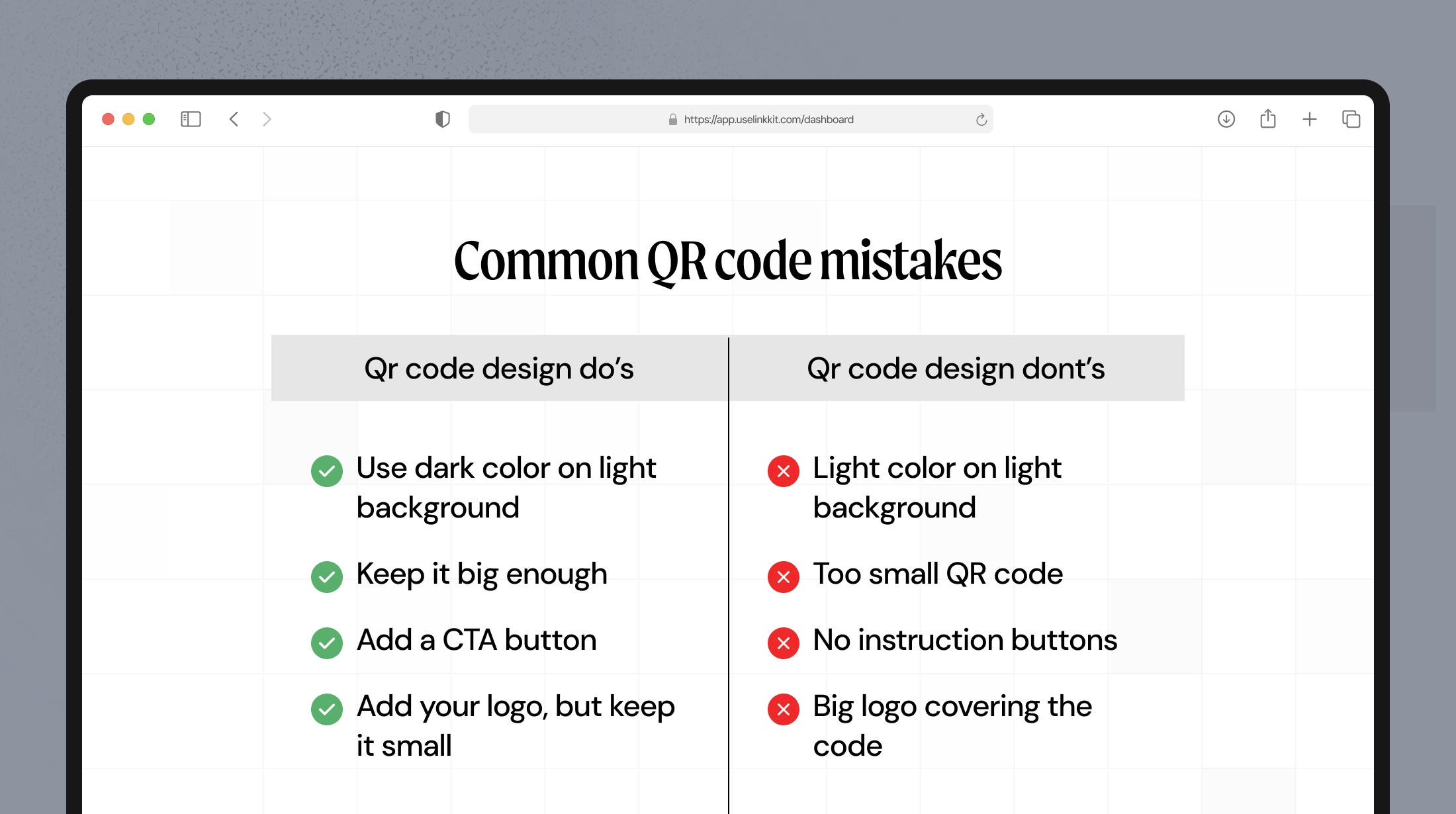
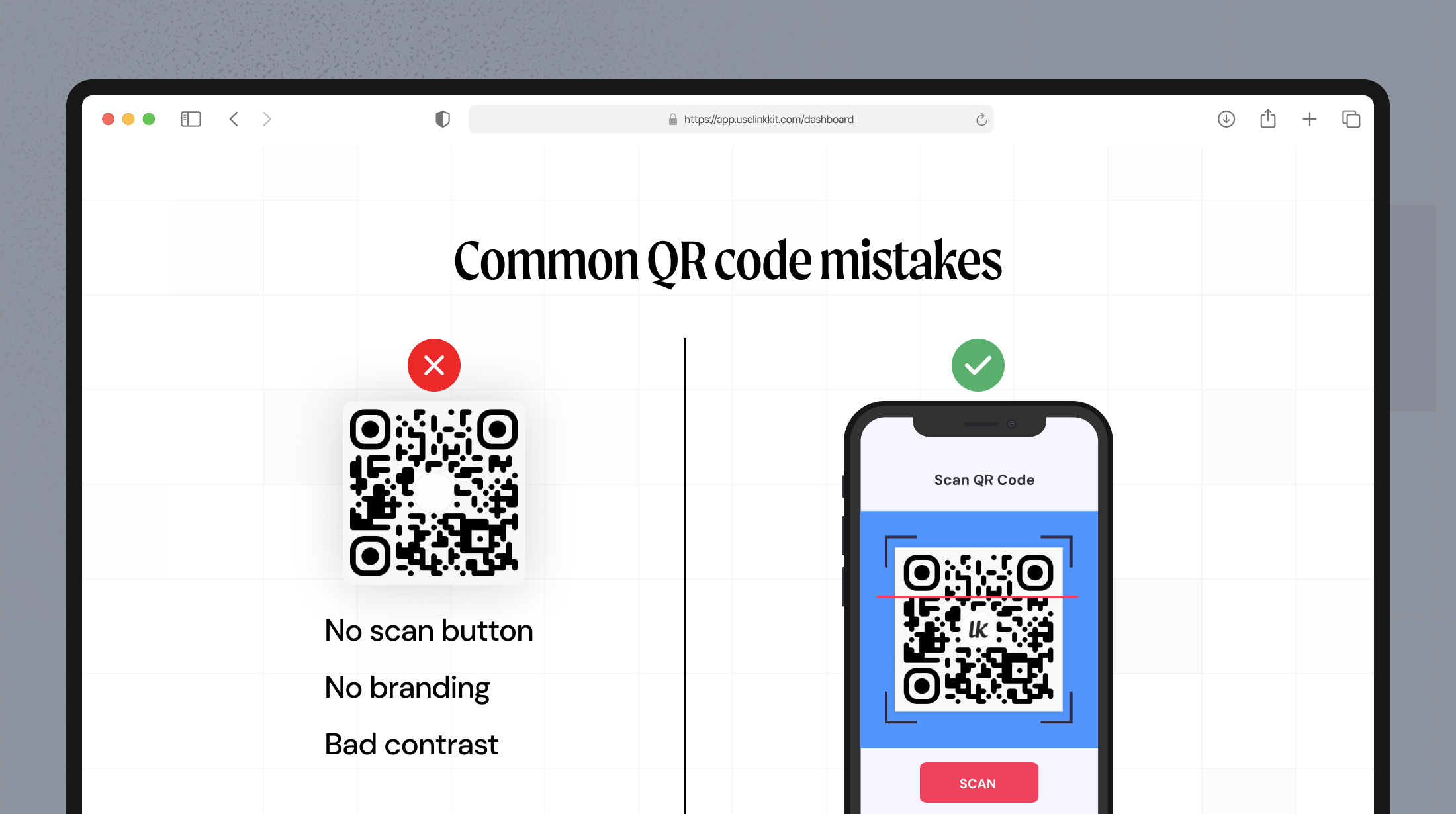
A well-designed QR code gets more scans. A poorly designed one gets zero — because it either looks untrustworthy or simply does not scan.
Contrast is Non-negotiable
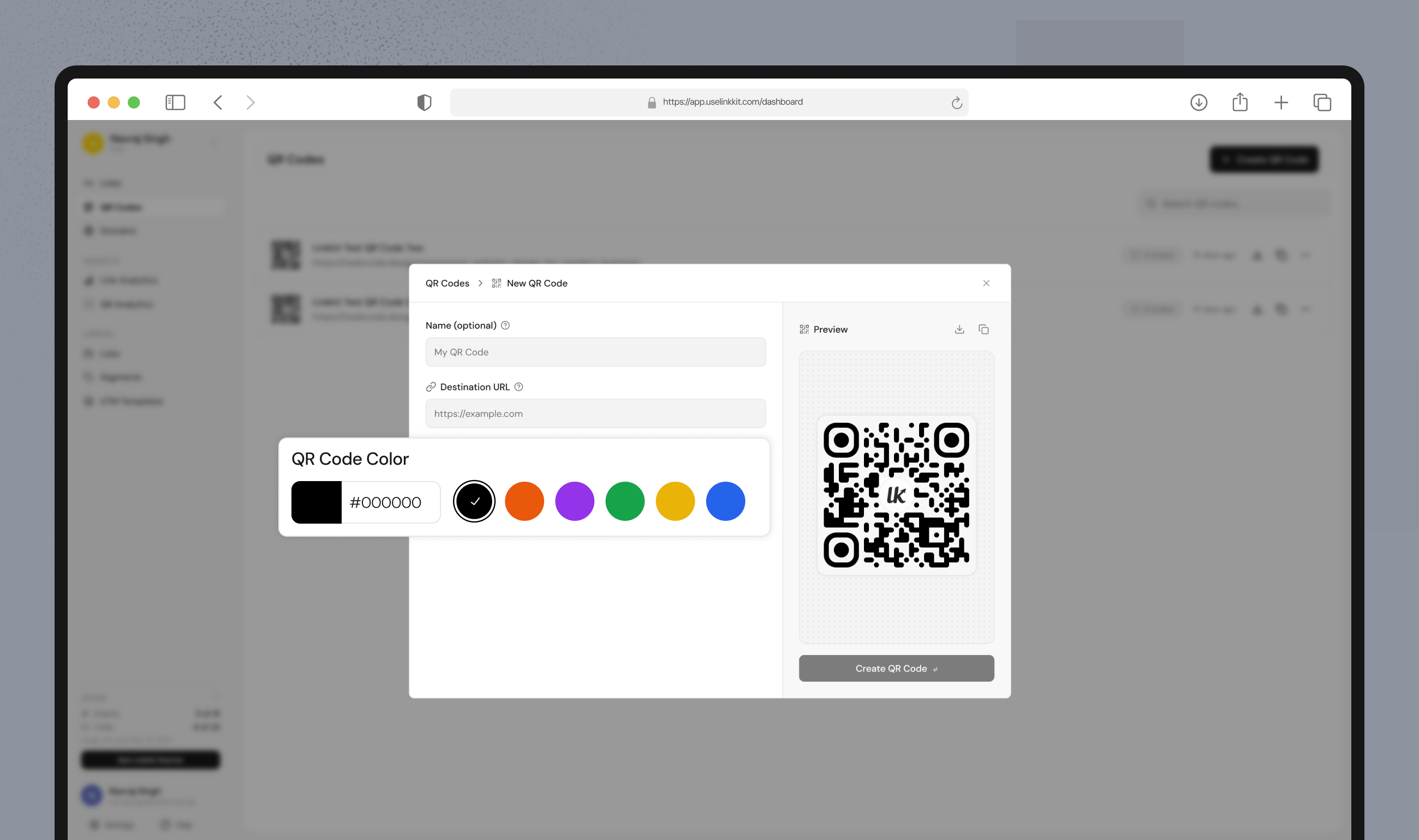
Your QR code must have a dark foreground on a light background. The contrast ratio should be at least 4:1. A light grey code on a white background will not scan reliably. Black on white always works. If you use brand colours, test thoroughly before printing.
Size matters more than you think
Too small and cameras cannot focus. Follow these minimum size rules:
Where it is placed | Minimum size |
|---|---|
💼 Business card or flyer (held in hand) | 1 inch / 2.5cm |
📄 Poster viewed from 3 feet | 2 inches / 5cm |
🪧 Signage viewed from 10 feet | 6 inches / 15cm |
🏢 Billboard or outdoor signage | Scale up proportionally |
The universal rule: scanning distance = 10x the QR code width. A 1-inch code scans from 10 inches. When in doubt, go bigger.
Always add a clear CTA
"Scan for Menu" outperforms a bare QR code with no instruction every single time. Tell people exactly what happens when they scan. Be specific — vague CTAs like "Scan Me" underperform.
Keep a quiet zone
A quiet zone is the blank white space border around the QR code. Without it, scanners struggle to detect where the code starts and ends. Never crop or overlap the quiet zone with other design elements.
Add your logo (carefully)
Adding your brand logo to the centre of a QR code increases recognition and trust — but the logo must not cover more than 20% of the total code surface. Beyond that, scannability drops significantly.
Test before you print
Always scan your final QR code at the intended print size, from the expected scanning distance, in realistic lighting conditions before sending anything to print. This is the single most important step most people skip — and it is the most expensive mistake to fix after a print run.
Download formats — PNG vs SVG
Choosing the wrong format is a common and avoidable mistake.
Format | Best For | Why |
|---|---|---|
🖼️ PNG | 💻 Digital use — websites, email, social media, presentations | ⚙️ Fixed resolution, universally supported |
🎯 SVG | 🖨️ Print — flyers, packaging, signage, business cards | 📈 Vector format, scales to any size without quality loss |
🏢 Large format print | 🖨️ High resolution, print-ready |
Rule of thumb: Always download SVG for anything that gets printed. PNG for everything digital. If you send a low-resolution PNG to a printer and it comes out blurry, you have to reprint. Download SVG from Linkkit for all print materials.
Common QR code mistakes to avoid
These are the mistakes that waste print budgets and lose scans:
Linking to a page that is not mobile-optimised
Using a static QR code for marketing materials
No CTA around the code
Making the code too small
Never testing before printing
Not tracking scans
Where to Use QR Codes — Use Cases
Business cards
Replace a long website URL with a branded QR code. When someone scans it at a networking event they land on your site, portfolio, or LinkedIn instantly — no typing.
Restaurant menus
The most common QR code use case post-2020. Link to your digital menu. Update prices and items without reprinting. Track which tables scan most.
Product packaging
Link to product instructions, warranty registration, recipe ideas, or tutorial videos. Amazon found QR codes on packaging increase customer engagement significantly.
Print ads, flyers, and posters
Turn static print into a measurable, interactive channel. Add a QR code to any print ad and track exactly how many people engaged with it.
Event tickets and badges
Link to the event schedule, venue map, speaker bios, or session feedback forms. Make it easy for attendees to access everything from one scan.
Email campaigns
Add a QR code to your email footer or email signature. When opened on desktop, users can scan the code to continue on mobile.
Retail and in-store
Link to product reviews, loyalty programmes, special offers, or how-to videos. Placed at point of sale or on shelf labels.
How to track QR code scans with Linkkit
Creating a QR code is step one. Tracking it is where the real value is.
Every QR code created with Linkkit automatically tracks:
Total scans — how many times the code was scanned
Scan location — country and city level data
Device type — iOS vs Android, mobile vs tablet
Scan over time — when scans happened, by hour and day
Referrer — how the scan was initiated
This data tells you which campaign, which location, and which material is generating the most engagement. You can measure the ROI of a printed flyer the same way you measure a digital ad. Learn more about Linkkit's click analytics.
Why use Linkkit to create QR codes
Every short link generates a QR code automatically — no extra steps
Dynamic QR codes — update the destination any time without reprinting
Full scan analytics — location, device, time, total scans
Branded short links — your domain on every short link behind the QR code
Download in PNG or SVG — ready for digital and print
Clean, simple dashboard — no learning curve
Free plan — no credit card required
Conclusion
Creating a QR code in 2026 takes less than 60 seconds. The bigger question is whether the QR code you create is dynamic, trackable, properly sized, well-designed, and linked to a mobile-optimised destination.
Done right, a QR code turns every printed surface into a measurable, interactive marketing channel.
Create your first QR code with Linkkit free today — no credit card required.
Frequently asked questions
How do I create a QR code for free?
With Linkkit, you can create a QR code for free in under 60 seconds. Paste your URL, create a short link, and your QR code is generated automatically. No credit card required.
What is the difference between a static and dynamic QR code?
A static QR code has a fixed destination that cannot be changed after printing. A dynamic QR code uses a redirect link, so you can update the destination any time — and track scan analytics. For any business use, always use dynamic QR codes.
What size should a QR code be?
For printed materials held in hand, the minimum size is 1 inch (2.5cm). For posters viewed from 3 feet, use at least 2 inches (5cm). For outdoor signage, scale up using the 10:1 rule — scanning distance equals 10 times the code width. When in doubt, make it bigger.
What format should I download my QR code in?
Download SVG for all print use — it scales to any size without quality loss. Download PNG for digital use — websites, email, social media, and presentations.
Can I add my logo to a QR code?
Yes. Adding your logo to the centre of a QR code increases recognition and trust. Keep the logo to a maximum of 20% of the total code surface to maintain scannability.
How do I track QR code scans?
With Linkkit, every QR code automatically tracks scans by location, device type, and time. You can see total scans and detailed analytics in your Linkkit dashboard in real time.
Do QR codes expire?
Static QR codes never expire. Dynamic QR codes — like those from Linkkit — also never expire, but you can update or disable the destination at any time.
Can a QR code link to anything other than a website?
Yes. QR codes can link to PDFs, videos, contact cards (vCard), Wi-Fi credentials, social media profiles, and more. The most common and versatile use is a URL or branded short link.