
Creating and Customizing Links
Learn all the options when creating a short link
Linkkit allows you to generate powerful, trackable short links that are easy to share and optimised for performance. This article explains how to create new links, customise their settings, and use advanced features to maximise your campaign results.
With this feature, you can:
Create short links instantly from any long destination URL
Customise the link text to match your brand or campaign
Add tracking and UTM parameters for analytics
Control link behaviour (expiration, password protection, audience targeting)
Monitor performance with real-time stats (clicks, locations, devices)
This means your links not only look great — they work smarter.
Step-by-Step: How to Create a Short Link in Linkkit
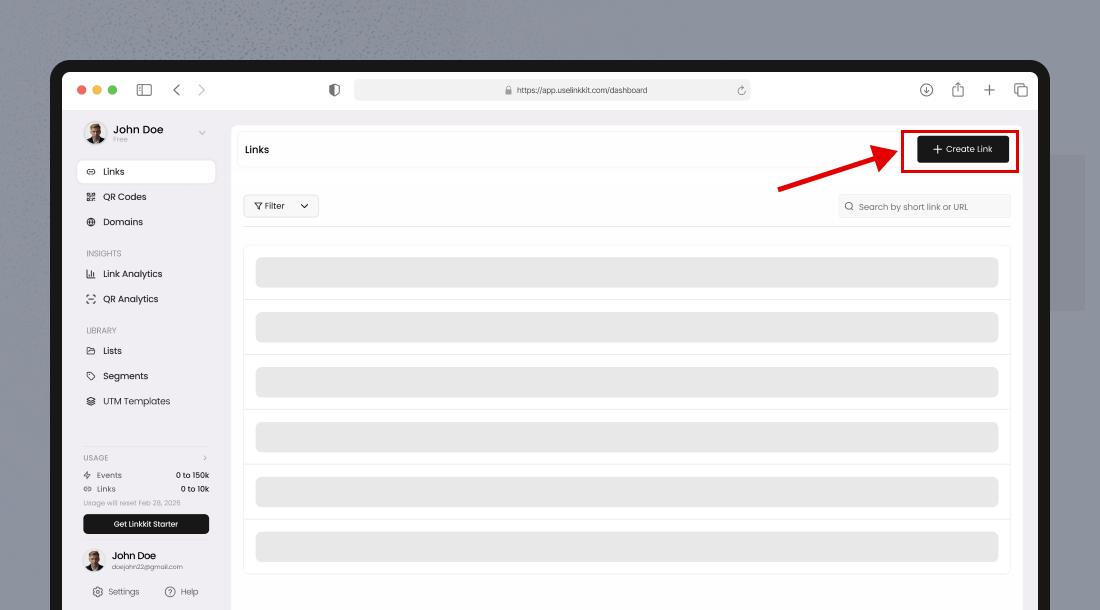
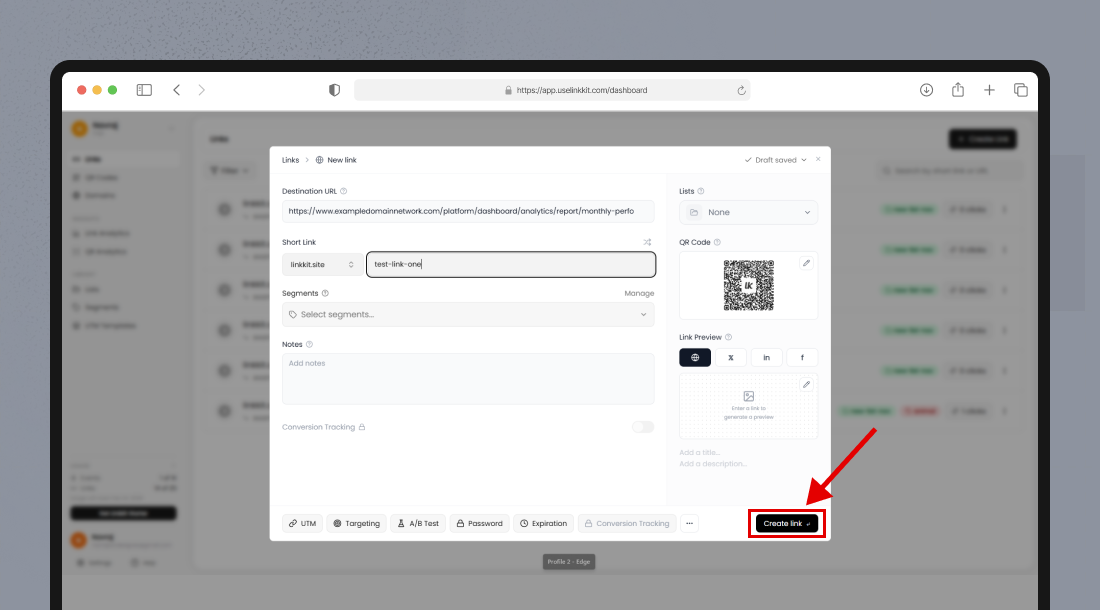
Click “Create Link”
Navigate to your dashboard and click the Create Link button at the top right corner.
This opens the link creation panel.
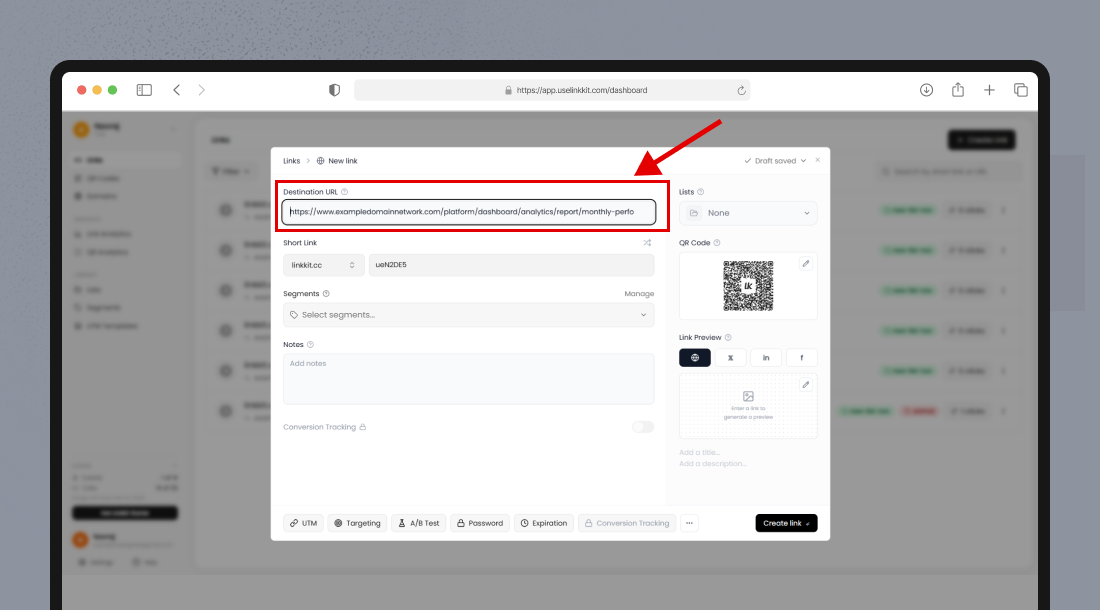
Enter the Destination URL
Paste the full URL where users should be redirected.
Make sure:
The URL starts with
https://orhttp://The destination page is live and accessible
This is the final page visitors will land on.
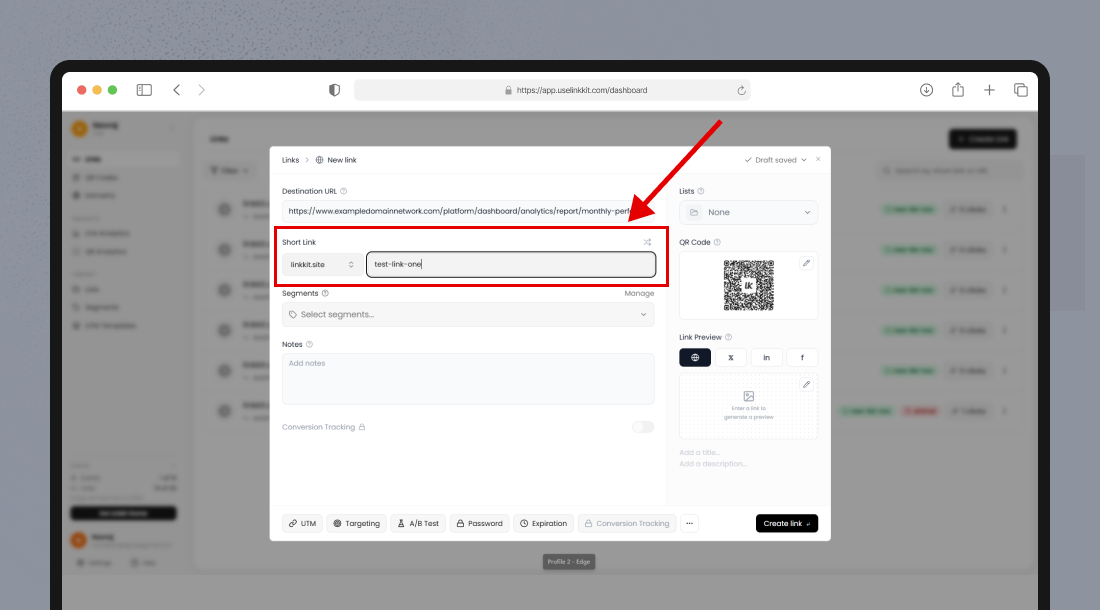
Customize the Link Slug
The slug is the part of the short URL that appears after your domain.
Example:
yourdomain.com/spring-offerUsing a clear and descriptive slug:
Improves branding
Builds trust
Makes links easier to remember
Increases click-through rates
Adding UTM Parameters for Campaign Tracking
UTM parameters help track traffic sources in analytics platforms.
You can:
Apply a saved UTM Template
Or manually enter:
UTM Source
UTM Medium
UTM Campaign
UTM Term (optional)
UTM Content (optional)
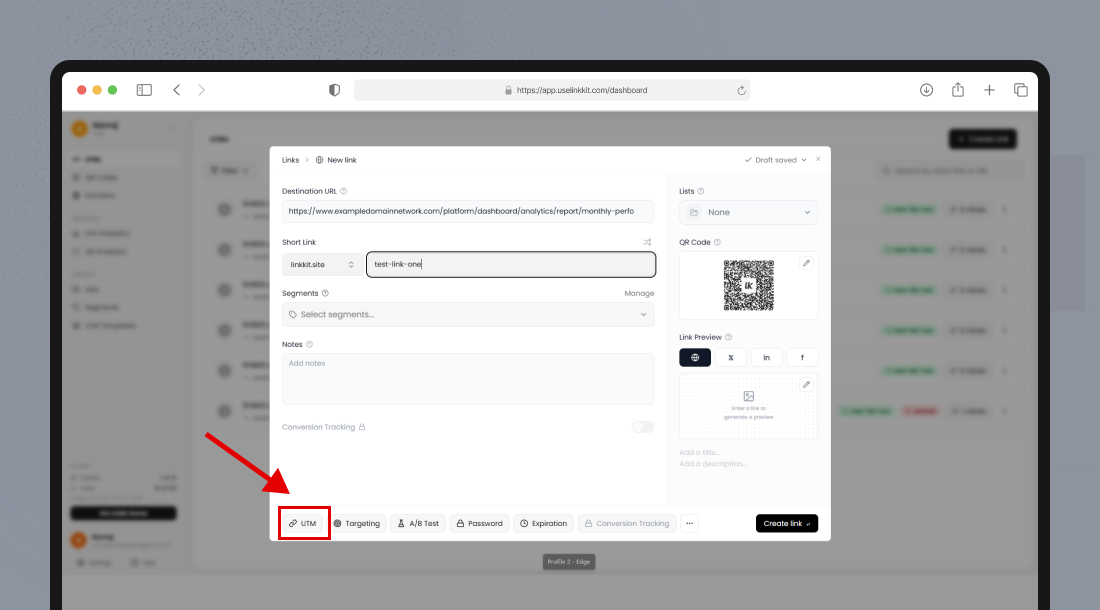
Using consistent UTM tagging ensures accurate marketing attribution and performance measurement.
Organizing Links with Segments and Lists
Using Segments
Segments allow you to label links based on:
Marketing channel
Campaign type
Platform (Instagram, Email, Ads)
Team or department
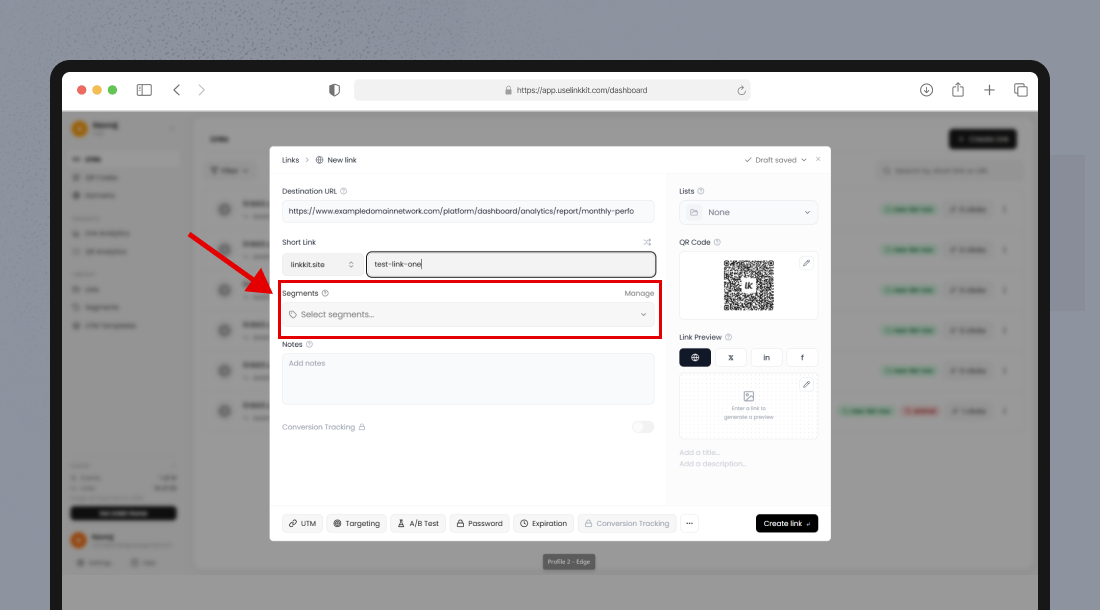
Segments make it easy to filter and search links later.
Using Lists
Lists function like folders and help group links by:
Project
Client
Product launch
Seasonal campaign
Business unit
Lists improve dashboard organization and make large-scale link management easier.
Advanced Link Customization Options
Linkkit provides additional controls to customize link behavior.
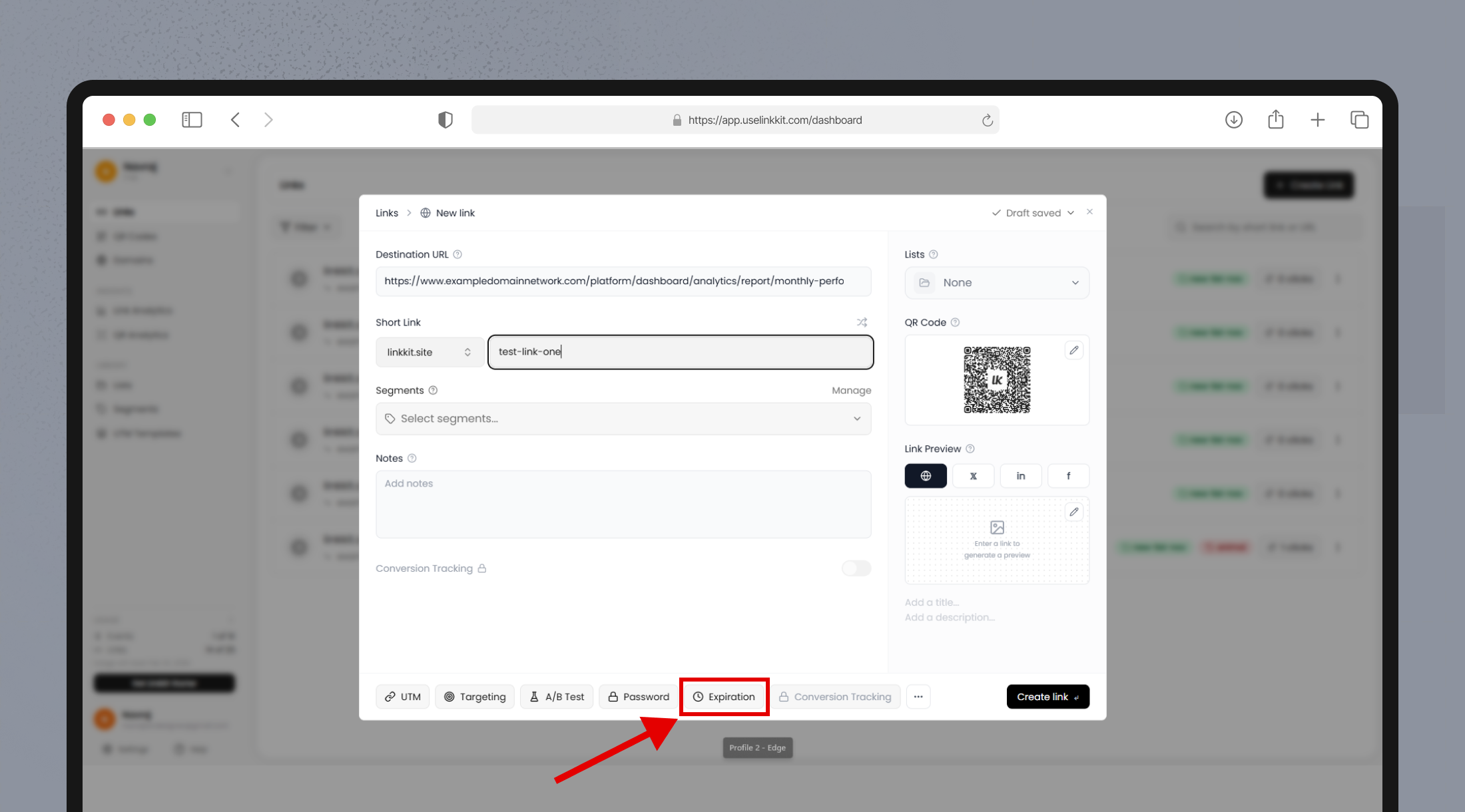
Set Link Expiration
You can define a date and time when the link will automatically stop redirecting.
Useful for:
Limited-time offers
Event promotions
Temporary campaigns
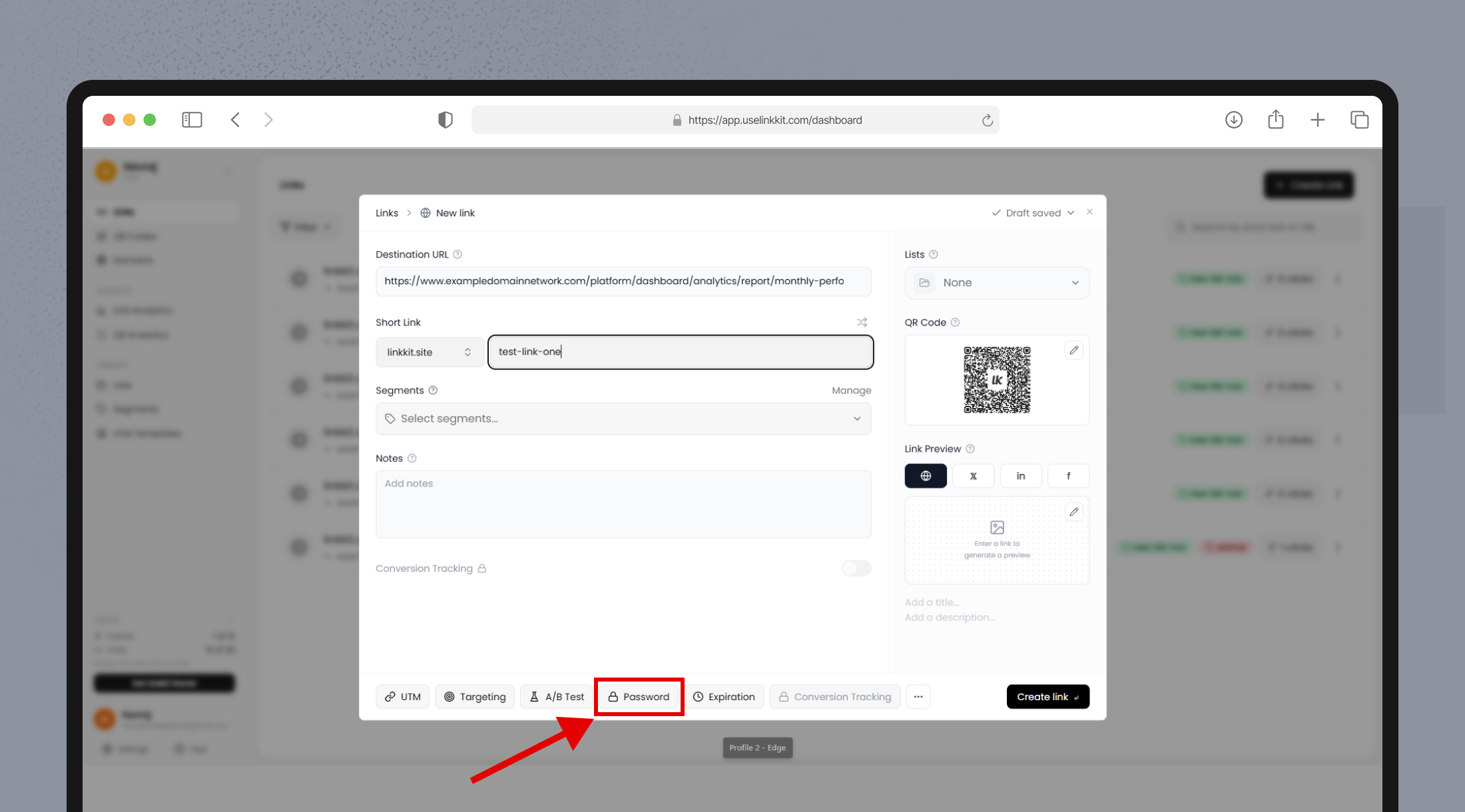
Enable Password Protection
Protect your link with a password if access should be restricted.
This is ideal for:
Internal documents
Private content
Early-access promotions
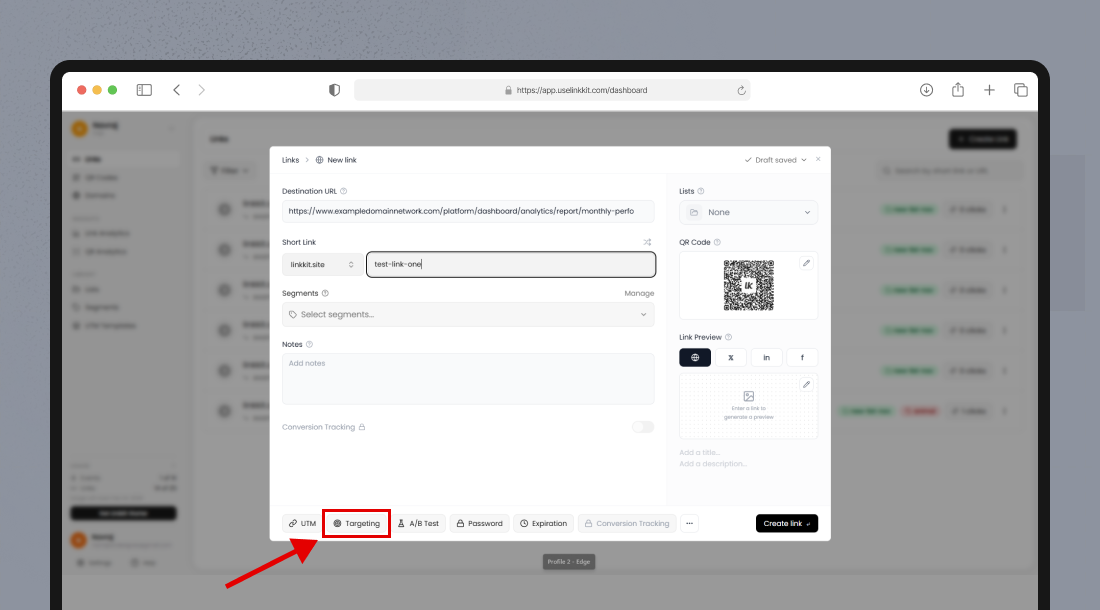
Smart Redirect Rules (If Available)
Depending on your plan, you can configure redirect rules based on:
Device type
Geographic location
Conditional routing
This ensures users receive the most relevant experience.
Save the Link
Click Save to generate your short link.
The link will appear instantly inside the Links List View, ready to copy, share, or analyze.
After Creating Your Link
Once saved, your short link will:
Appear in the Links List View
Be ready to copy and share
Begin tracking clicks immediately
Allow edits at any time (depending on settings)
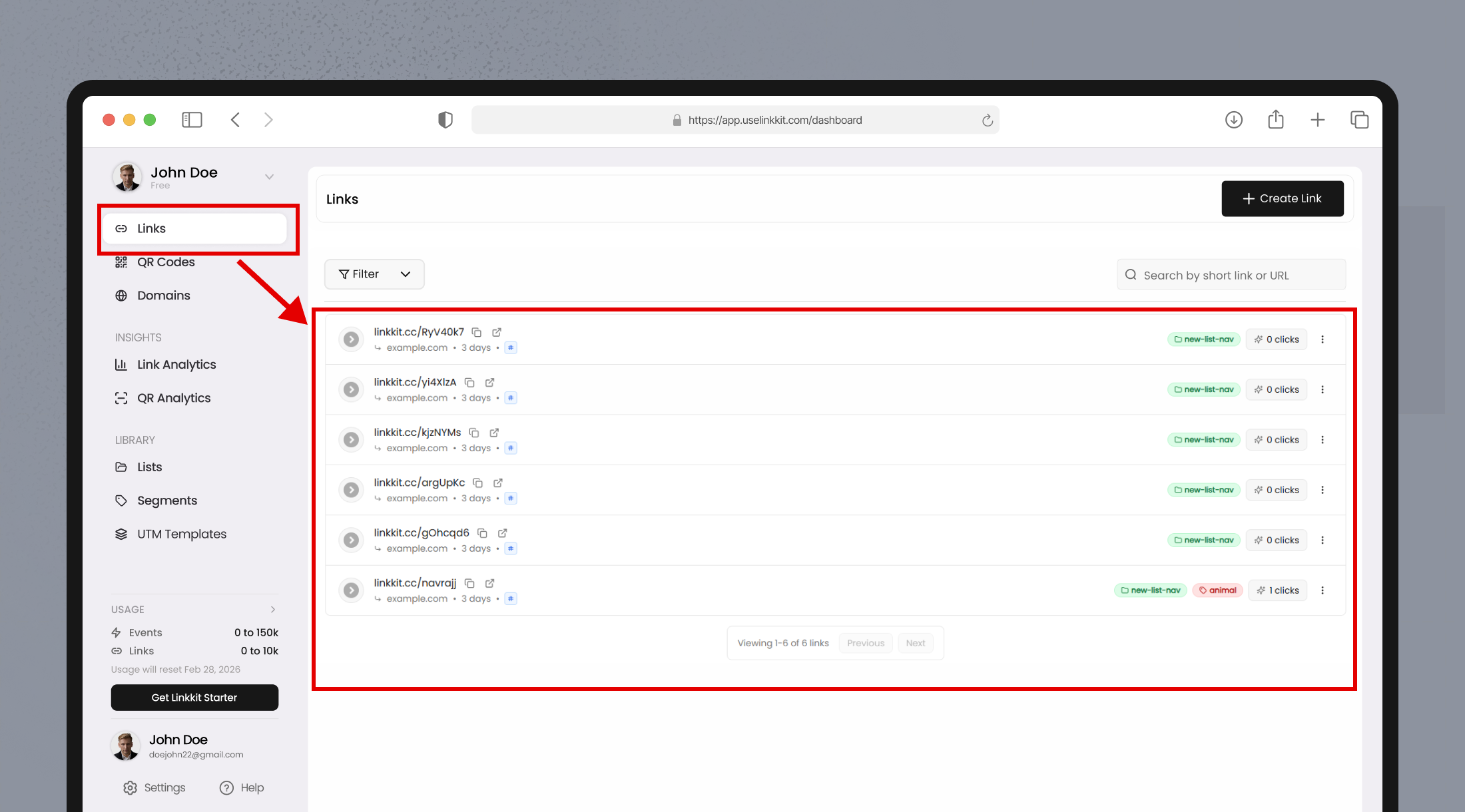
You can also generate QR codes or access detailed analytics from the link row actions.