
Customizing QR Codes
Customize colors, add logos, and style your QR codes
Learn how to personalize and enhance your QR codes in Linkkit — including styling options, branding features, formats, and best practices — so your QR codes align with your visual identity and perform better in real-world use.
Overview
Linkkit lets you go beyond plain black-and-white QR codes. With customization options, you can create visually appealing, branded QR codes that stand out in print and digital marketing. These customization tools help your QR codes reflect your brand and improve engagement.
Whether you want to change colors, add a logo, or adjust error correction levels, this guide walks you through all available options.
How to Customize Your QR Codes
To customize a QR code:
Open the QR Codes section in your Linkkit dashboard
Locate the QR code you want to personalize
Click the Edit icon
Choose from the customization options below
Note: Customization features may vary based on your Linkkit plan. Higher plans unlock more design flexibility.
1. Change Colors
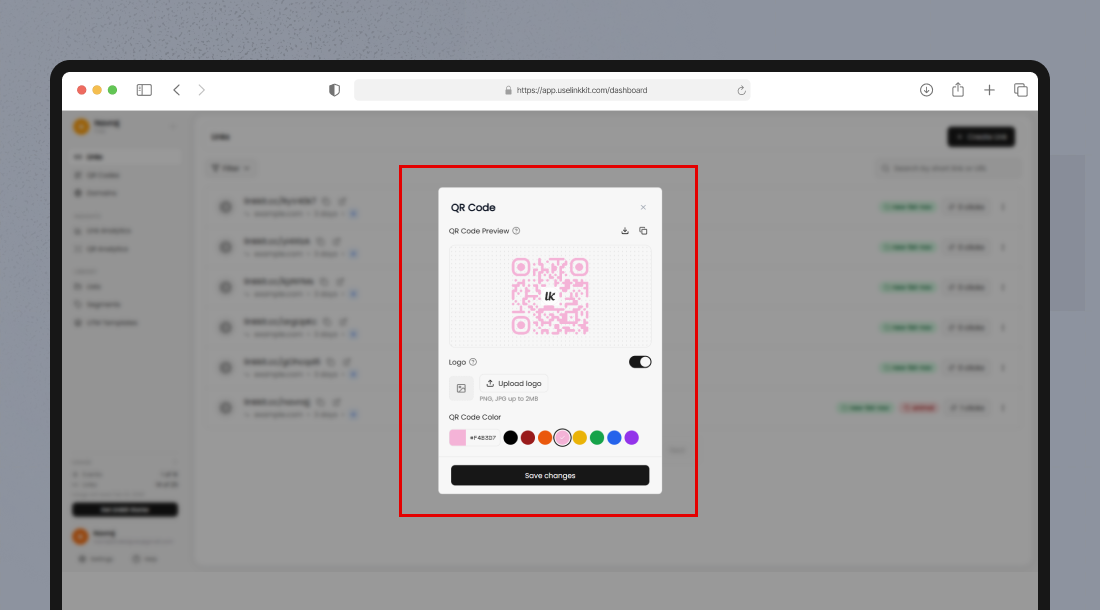
You can customize the colors in your QR code to match your brand:
Foreground color – the main QR code color
Background color – behind the QR code pattern
Tips:
Ensure high contrast (e.g., dark foreground on a light background) so scanners can read the code easily.
Avoid similar hues for foreground and background.
2. Add a Logo or Icon
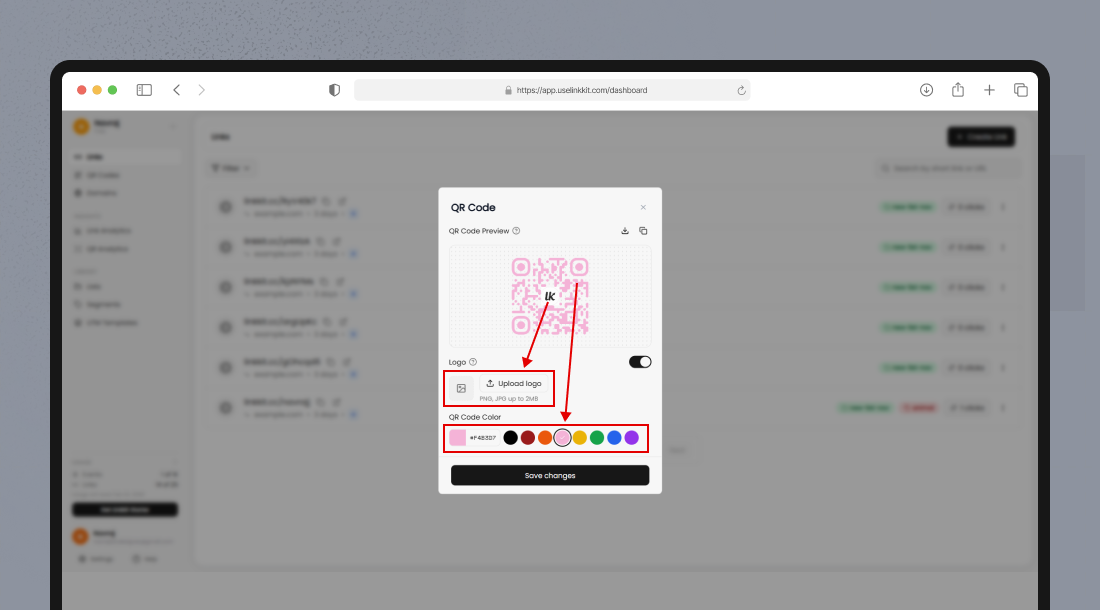
Adding a logo or icon helps reinforce brand recognition and trust.
How to Add a Logo:
Click Add Logo inside the customization panel
Upload an image (PNG with transparent background recommended)
Adjust size and placement
Best Practices:
Keep the logo centred within the QR code
Avoid covering too much of the data area
Use simple, high-contrast logos
When done properly, logo-embedded codes remain scannable and stylish.
3. Adjust Error Correction Level
Error correction determines how much of the QR code can be obscured while remaining scannable.
Linkkit supports multiple error correction levels:
Low – smallest code, minimal error tolerance
Medium – balanced size and reliability (default)
High – most resilient, ideal for printed surfaces that may get damaged
Higher error correction levels slightly increase the visual complexity of the QR code, but improve scan reliability in challenging environments.
4. Change Shape & Style (If Available)
Depending on your plan, Linkkit may offer additional visual styles like:
Rounded dots instead of square pixels
Unique corner designs
Pattern variations
These stylistic elements help your code feel less generic and more integrated with your brand identity.
5. Custom Frame & Call-to-Action (Optional)
Add a frame or text around your QR code:
“Scan to View Menu”
“Scan for Discount”
“Scan to Buy Now”
A clear call-to-action increases scan rates and helps users know what to expect.
Tips for Effective QR Code Design
To maximise scan engagement:
Maintain High Contrast
Ensure clear readability by using distinct colors for foreground and background.
Keep It Simple
Avoid overloading with too many design elements.
Include a Clear CTA
Tell users what they will get when they scan: “Get 10% Off”, “Watch the Video”, etc.
Use Appropriate Sizes
Small (Business cards & labels)
Medium (Flyers & brochures)
Large (Posters & banners)