
Creating QR Codes
Generate QR codes for any URL
How to Create a QR Code in Linkkit
Follow these steps to create a QR code for any existing or new Linkkit link:
Step 1 — Open Your Linkkit Dashboard
Log in to your Linkkit account and go to your dashboard.
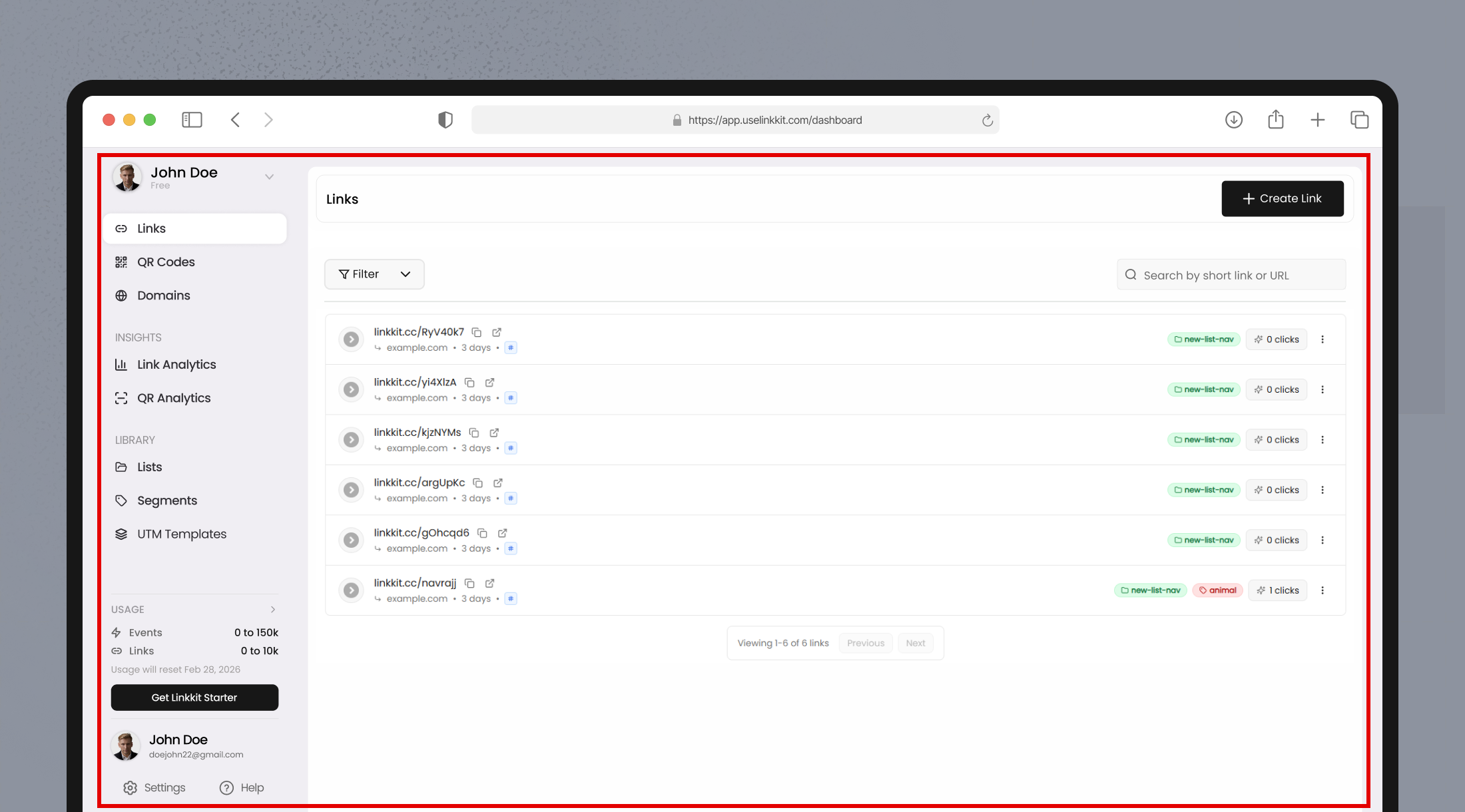
Step 2 — Select a Link
From your list of links:
Locate the link you want a QR code for
Click the More Options (⋮) icon beside it
You can also create a new link first, then generate a QR code for it.
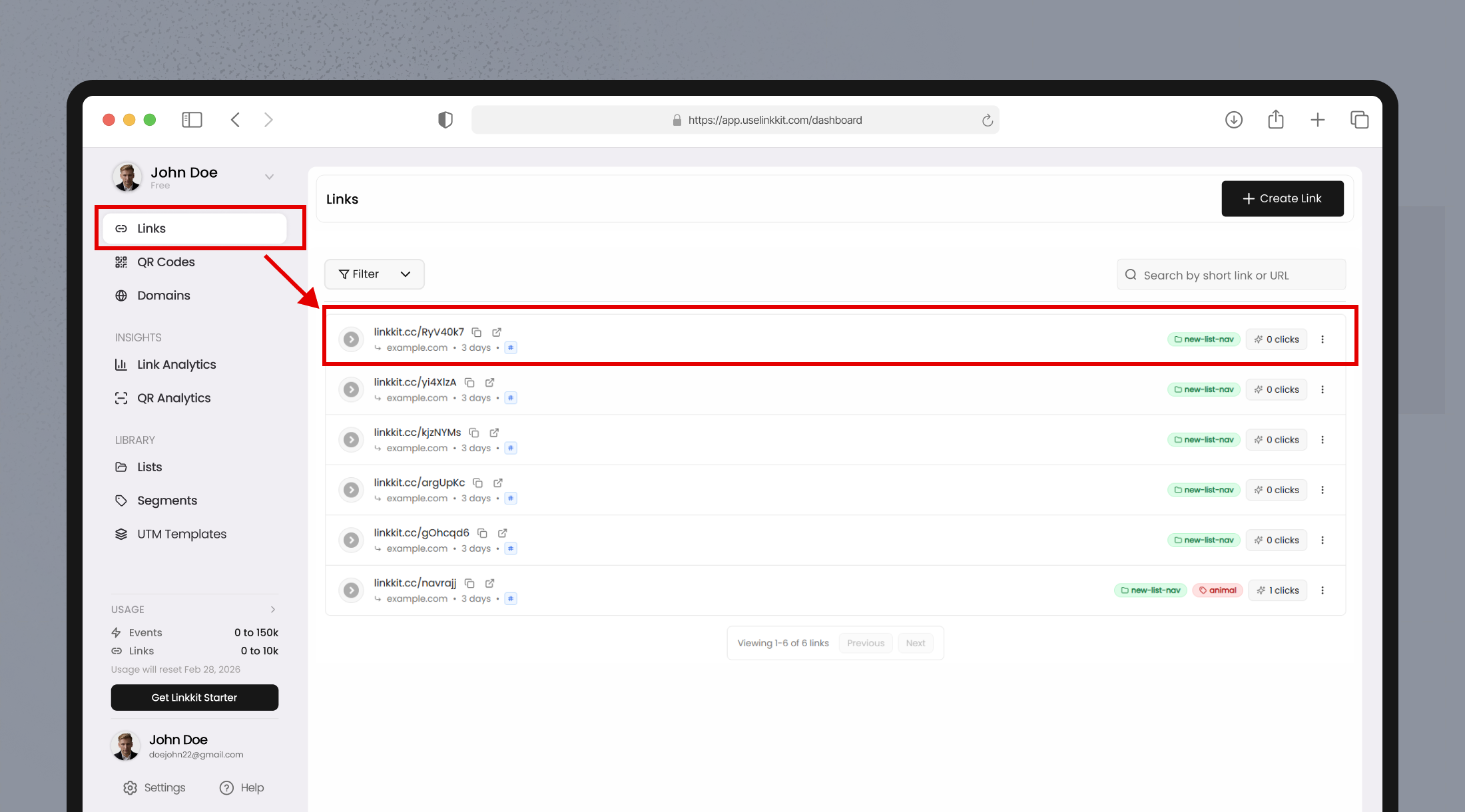
Step 3 — Click “Generate QR Code”
In the options menu:
Select Generate QR Code
Linkkit instantly builds a QR code tied to your link
The QR code preview will appear on-screen.
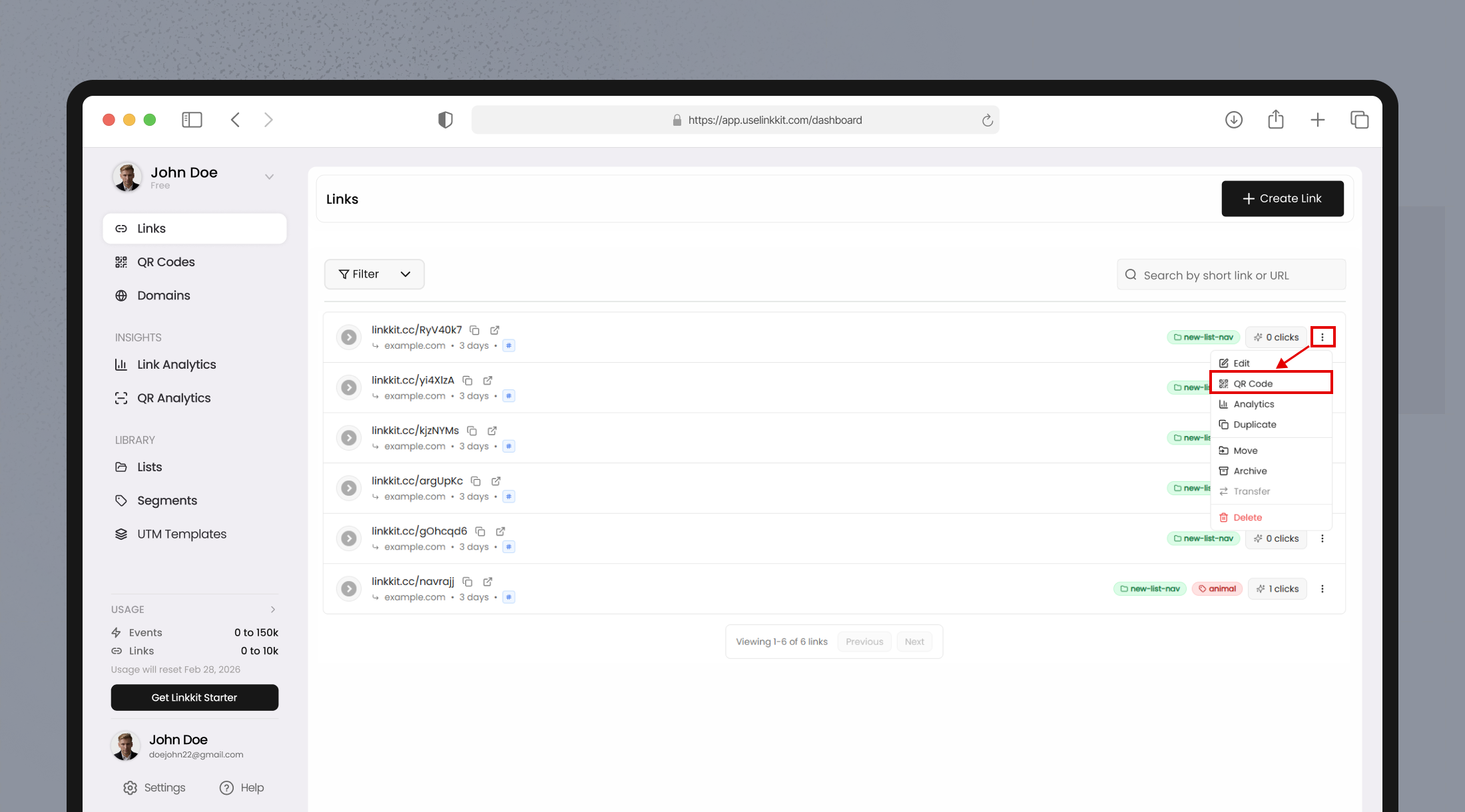
Step 4 — Customize (Optional)
While customizing features vary by plan, you might be able to:
Choose QR code style
Download in different formats
Add logo/branding (on supported plans)
Customize based on your campaign needs.
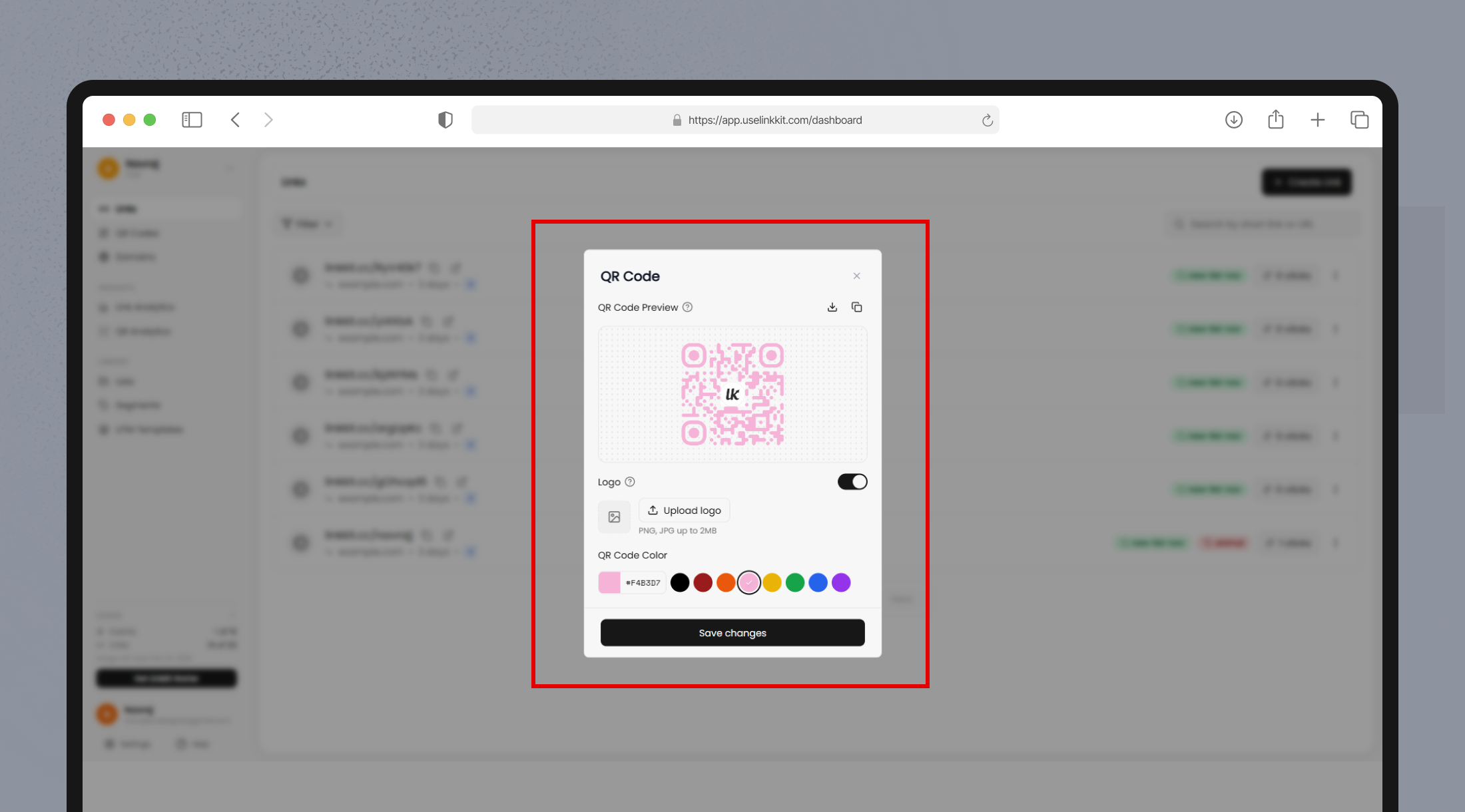
Step 5 — Download or Share
Click the download button to save your QR code in:
PNG format (standard)
Best for:
Websites
Social media
Email campaigns
Digital displays
PNG files are optimized for web use and fast sharing.
SVG format (vector, high-resolution)
Best for:
Professional printing
Large banners
Posters
Packaging
SVG files are vector-based, meaning they can scale infinitely without losing quality.
Or copy and share the QR code directly.
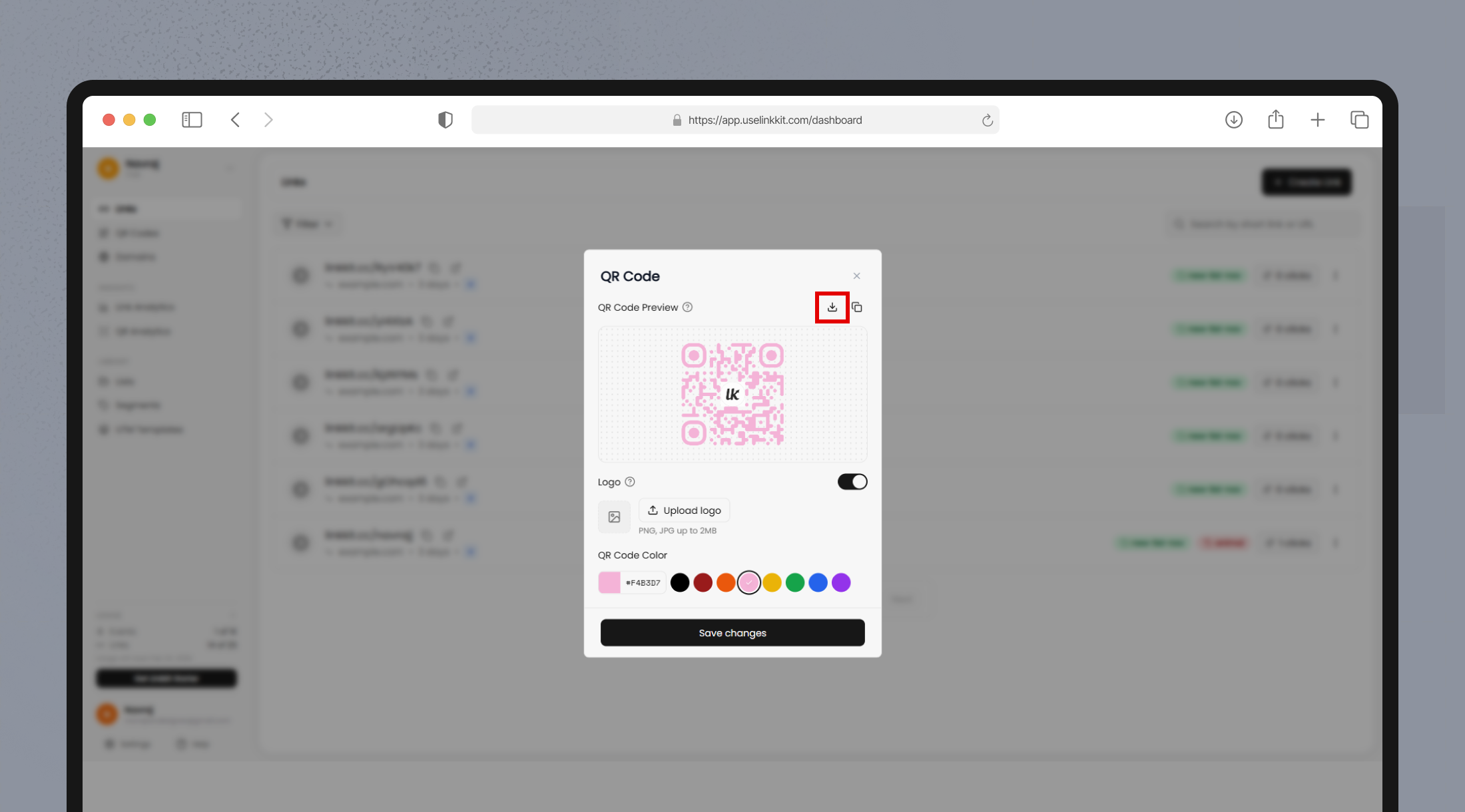
Note : Check your plan for supported export formats.
Understanding Basic QR Code Options
Error Correction Levels
Error correction ensures your QR code remains scannable even if part of it is damaged, smudged, or partially covered.
Low error correction – Smaller QR code, best for clean environments
Medium error correction – Balanced size and reliability (default)
High error correction – Ideal for small prints or challenging conditions
Higher error correction increases durability but slightly increases QR code density.
For posters, outdoor signage, or packaging, medium to high correction is recommended.
Managing Your QR Codes
All generated QR codes appear in your QR Codes list, where you can:
View previews
See associated links
Edit details
Download files
Track performance
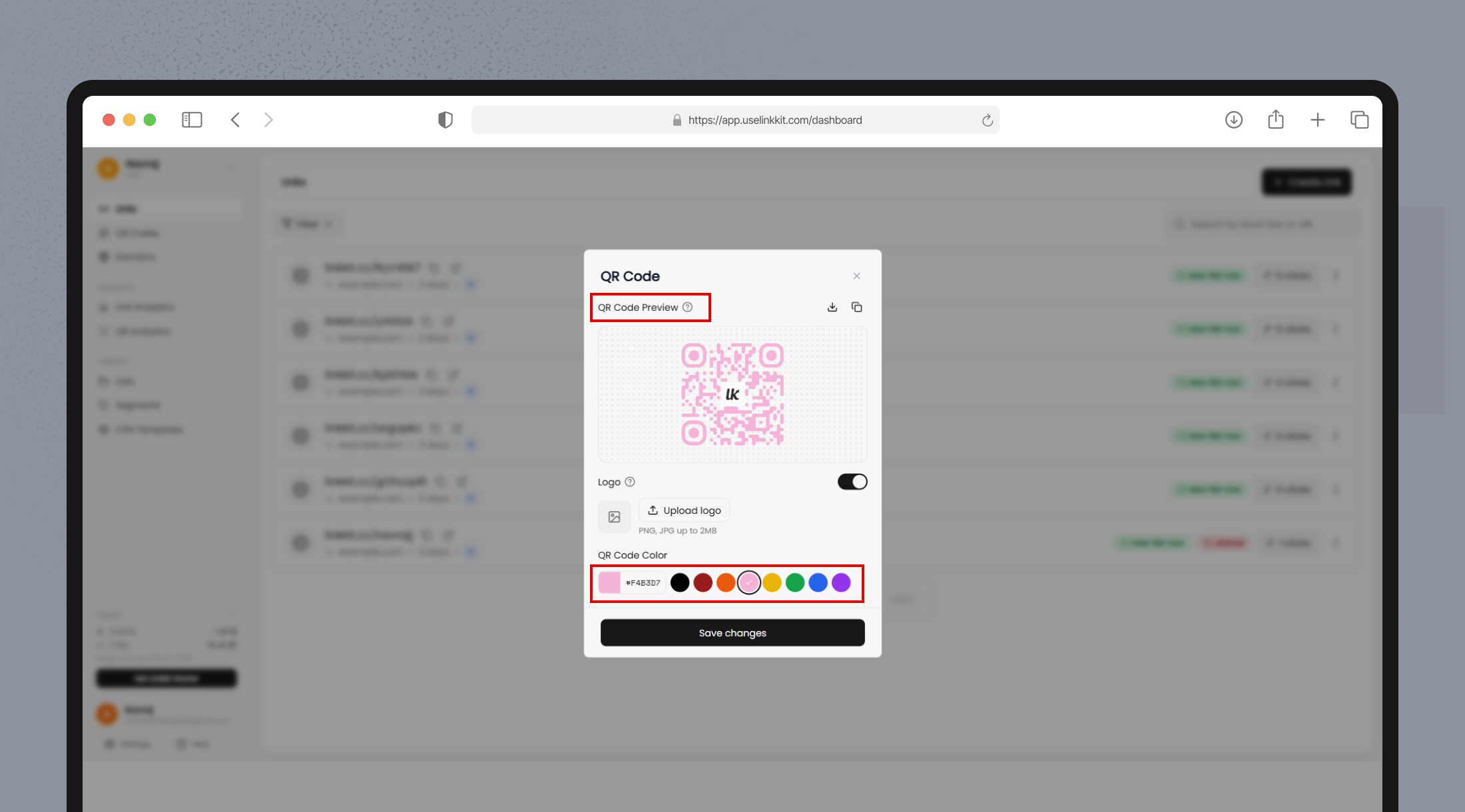
Editing a QR Code
You can update:
Destination URL
QR code name
Styling (if available on your plan)
The key benefit:
When you change a QR code’s destination URL, the image itself does not change. This means you can update where it points without reprinting physical materials.
This makes QR codes in Linkkit dynamic and campaign-flexible.
Tracking QR Code Scans
Every QR code scan is tracked inside your Linkkit analytics dashboard.
You can view:
Total number of scans
Location data
Device types
Traffic trends over time
Each scan counts as a tracked click under your subscription plan.
This data helps you:
Measure offline marketing ROI
Compare performance across campaigns
Identify high-performing print placements
Optimize future campaigns
Why Use QR Codes With Linkkit?
Using QR codes in your Linkkit workflow gives you:
Instant offline engagement — connect physical marketing with digital analytics
Branded tracking — same analytics as your regular links
Easy sharing — ideal for print, packaging, events, and ads
Customizable export formats — PNG, SVG, and more
Each QR code in Linkkit is tied to your link’s analytics, so every scan is tracked just like a click.