
Upgrading Your Plan
How to upgrade and what to expect
Upgrading your Linkkit plan allows you to unlock higher link limits, increased tracked clicks, advanced integrations, additional users, and premium support features.
You can upgrade at any time from your dashboard. All upgrades take effect immediately, so you can continue running campaigns without interruption.
This guide explains:
When to upgrade
How to upgrade your plan
What happens after upgrading
How Billing works
When Should You Upgrade Your Plan?
You may need to upgrade your Linkkit subscription if:
You Are Reaching Your Limits
You’ve hit your monthly tracked click limit
You need more new links
You require additional users
You need more workspaces
You want additional custom domains
You Need Advanced Features
Higher plans unlock:
Retargeting pixels
Full API access
Webhooks
Google Analytics integration
Role-based permissions
Removal of Linkkit branding
Priority support
If your campaigns are scaling, upgrading ensures uninterrupted tracking and performance monitoring.
How to Upgrade Your Linkkit Plan
Upgrading your Linkkit plan only takes a few minutes. Follow the steps below to unlock higher limits and advanced features instantly.
Step 1: Log in to Your Linkkit Account
Sign in to your Linkkit dashboard using your registered email and password.
Make sure you're logged into the correct workspace if you manage multiple accounts.
Step 2: Open Billing & Plans Settings
From your dashboard: Settings → Billing & Plans
Click on Settings in the sidebar menu.
Select Billing & Plans.
Here, you’ll see your current subscription details, billing cycle, and available plan options.
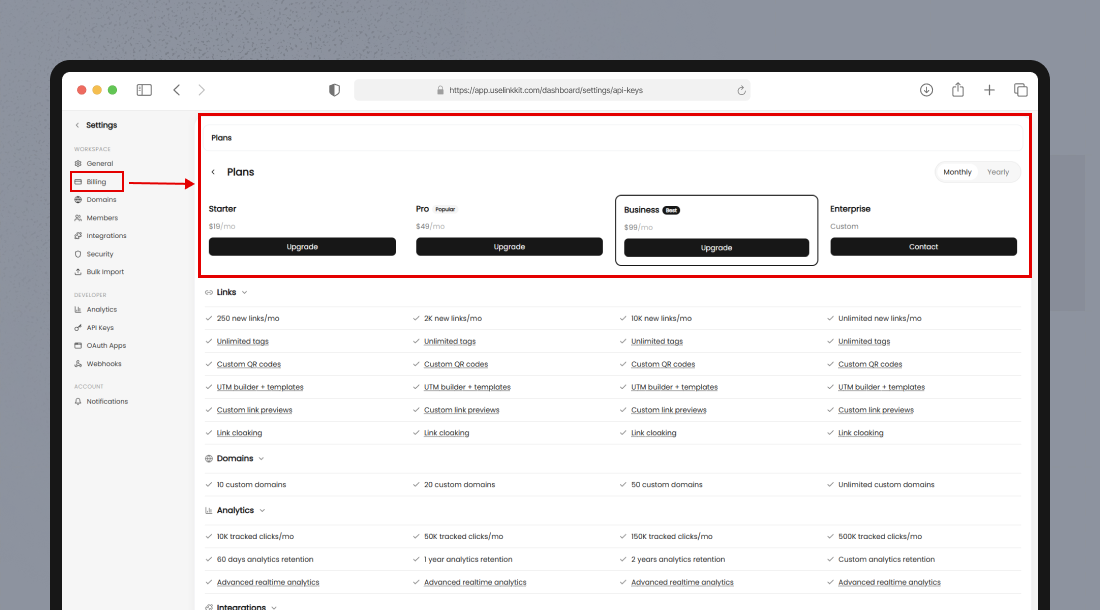
Step 3: Click “Change Plan”
You’ll see your current plan and available upgrade options.
On the Billing & Plans page:
Click the Change Plan button.
A list of available upgrade options will appear.
You’ll be able to compare features and limits before selecting a new plan.
Step 4: Choose Your New Plan
Select the plan that fits your needs:
Starter – For individuals
Pro – For professionals & consultants
Business – For growing teams
Enterprise – Contact sales for custom pricing
You can also switch between:
Monthly billing (flexible payments)
Annual billing (2 months free)
If you select annual billing, your subscription will be charged yearly at a discounted rate.
Step 5: Review and Confirm Payment
Before completing the upgrade:
Review your selected plan
Confirm the billing cycle (monthly or annual)
Verify your payment method
Click Confirm Upgrade to complete the process.
What Happens After You Upgrade?
Immediate Access to New Limits
Once your upgrade is confirmed:
Your new link limits apply immediately
Your new tracked click limits apply immediately
Additional users and workspaces become available
Advanced features unlock instantly
There is no downtime.
Data and Links Remain Safe
Existing links remain active
Analytics data is preserved
No links are deleted during upgrade
Your campaigns continue running seamlessly.
How Billing Works
You are charged at the beginning of each billing cycle.
Click limits reset monthly.
If you exceed your click limit, you may need to upgrade your plan.
Annual plans are billed once per year.
You can update payment details anytime under Billing Settings.
Choosing the Right Plan
If you are… | Recommended Plan |
|---|---|
Individual creator | Starter |
Consultant or agency | Pro |
Marketing team | Business |
Enterprise organization | Enterprise |
If you're unsure, start with Starter or Pro and upgrade as your usage grows.